Mia Villano's Blog
November 26, 2025
The Ultimate WordPress Migration Checklist for Beginners
If you’re planning to move your site to WordPress.com, this step-by-step WordPress migration checklist covers everything you need for a smooth, stress-free process.
You’ll find the exact workflow and steps I’ve used to successfully move WordPress sites so that you can complete your own website migration with confidence.
TL;DR: Quick WordPress migration checklistHere’s a quick overview of the WordPress migration checklist that’s covered in full detail in this guide:
Pre-migration steps:Plan and communicate: Decide when you’ll migrate, and let your visitors know via emails, social media, and a prominent notice on your homepage. Pause site activity: Place the site in maintenance mode and stop making changes. Back up the site: Create a full site backup and verify you can restore it. Measure site performance: Record load times, SEO benchmarks, and other metrics for comparison after the migration. Prepare the site: Update to the latest software versions, remove unused plugins and themes, and gather all logins.Practice the migration: Choose a migration method and rehearse moving the site to a safe environment, and verify the results. Prepare the new site: Create a WordPress site on the new host, ensure that the software versions match those on the source site, and set the search engine visibility. During migration:Move the site: Start the migration process, whether you’re using a plugin or the WordPress.com migration service. Manage the domain: Point your domain to the new site and enable SSL. SSL encrypts data transferred between the site and the visitor’s browser to keep information private and secure.Post-migration:Test the site: Explore the site to verify it looks and functions as expected. Check URLs: Ensure all URLs and links are working.Compare performance: Refer to pre-migration test results to confirm SEO and performance have remained stable or improved. Set visibility: Make the site accessible to visitors and search engines. Monitor analytics: Track key metrics to ensure service continuity. Cancel old host: Close your old hosting account after the migration is complete.Let’s go through the checklist in detail so you’re fully prepared to successfully migrate your WordPress site to a new host.
WordPress migration checklist: 10 key stepsFrom planning and preparation to testing and monitoring, our checklist walks you through the WordPress website migration process.
1. Plan your migration and communicate clearlyBegin with a clear plan and transparent communication.
Migrations can lead to short periods of downtime, and letting people know what’s coming helps avoid confusion.
Here’s what you can do:
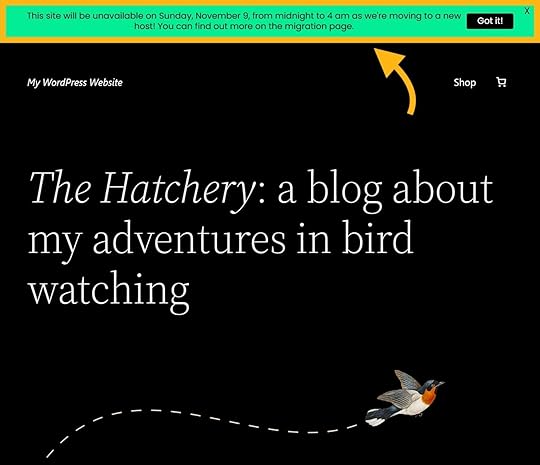
Communicate: Be clear about why you’re migrating and how it will benefit your site and its audience. This will make it easier to communicate your plans effectively.Plan: Schedule the move during a quiet period, usually the early hours of Sunday morning, but check your analytics to see when visits and conversions are at their lowest. Take seasonal peaks, such as Black Friday, into account.Inform: Tell your audience what’s happening and why. Highlight the benefits of the migration, such as faster load times or improved security. Explain what to expect, including temporary unavailability or limited functionality. This helps users to be patient during any downtime. Communicate: Use multiple channels to reach everyone, including email, social media, and on-site banners. Include the date and time of the migration, how long it will take, and the main benefits users can expect once it’s complete.Tip: A free plugin like My Sticky Bar makes it easy to create a site notification bar.
For example, this website uses a notification bar to announce its migration window:
 2. Enable maintenance mode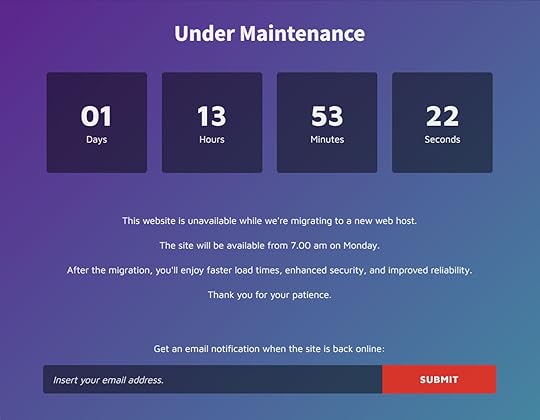
Next, enable maintenance mode using a plugin.
This lets you display a clear message about the migration to visitors and prevents anyone from interacting with your site — like submitting forms or leaving comments — while the move is happening.
Here’s how:
Install a plugin: For example, CMP – Coming Soon & Maintenance Plugin is a good free option.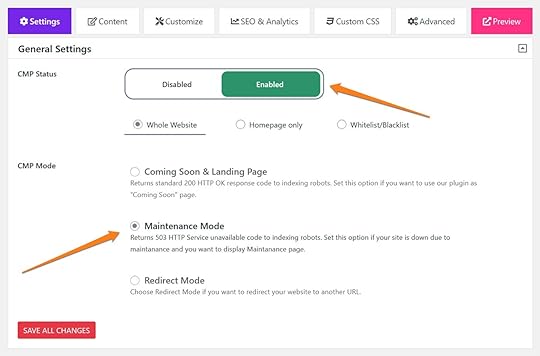 Enable maintenance mode: Turn on the plugin’s maintenance mode and add a custom message for your visitors.
 In addition to displaying a custom message and restricting access to your site, a good migration plugin will also return a “503 Service Temporarily Unavailable” status code.
This code signals to search engines that any downtime is temporary, helping to protect your rankings.
You can also use an online tool or PowerShell to check the HTTP status code of your site:
curl.exe -I https://yourgroovydomain.com
Don’t make any changes to your site while it’s in maintenance mode. This ensures no data or changes are lost during the move.
3. Create and verify a site backup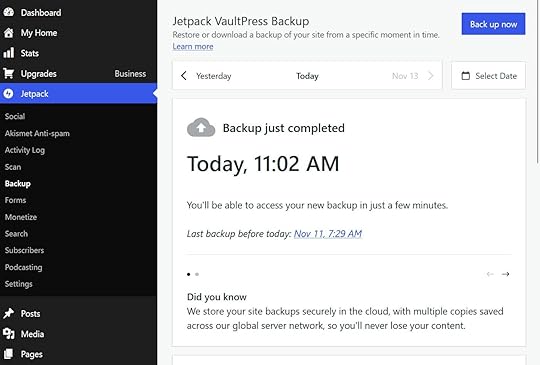
Before migrating, create a complete site backup (including files and database) to protect against data loss.
Create a backup: A backup plugin makes it easy to back up your site. Popular options include UpdraftPlus and Jetpack VaultPress Backup (included on the WordPress.com Business and Commerce plans). Store safely: Save your backup files off-site, such as on your computer or in cloud storage.Verify the restore: Ensure the backup can be successfully restored before beginning the migration. Use a staging site or local installation for testing.Tip: Our guide to backing up WordPress sites has step-by-step instructions and extra advice.
4. Audit SEO and performance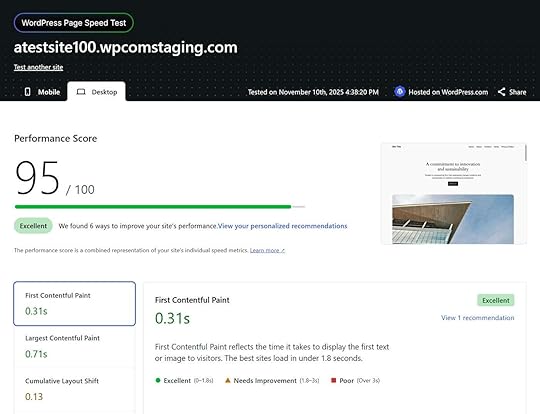
From here, record your site’s current performance and SEO metrics before migration.
This provides a clear baseline, so you can confirm that everything is working as expected once the move is complete.
Follow these steps:
SEO audit: Note your top-ranking pages, keyword visibility, and traffic levels, using tools like Google Analytics (GA4) and Google Search Console. Page speed: Record load times using the WordPress Speed Test tool and Google PageSpeed Insights. Core Web Vitals: Note FCP, LCP, CLS, TTFB, and TBT metrics. Together, these show how quickly your site loads, how smooth it feels to use, and whether anything shifts or delays interaction.Tip: This data can be used after the migration to verify the success of the move.
5. Update and prepare your site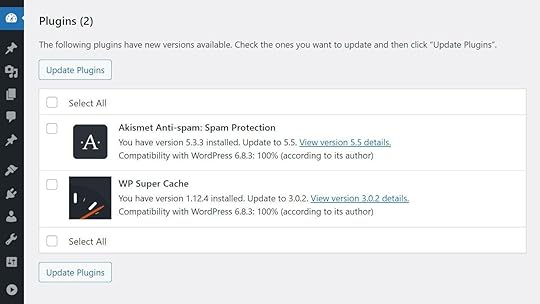
Next, prepare your site for migration by making sure everything’s up to date and ready to move.
Give your site a quick cleanup and compatibility check so the migration goes smoothly and nothing unexpected breaks along the way:
Update everything: Update WordPress core, themes, plugins, and PHP to the latest versions.Clean up: Remove any plugins or themes you no longer need. For example, WordPress.com already offers various features like caching, security, backups, and performance optimization, so plugins in those categories aren’t needed after the migration. Temporarily disable any caching, firewall, and redirection plugins before migrating to avoid conflicts.Gather credentials: Record all account login details for your site, including those for hosting and third-party services.Check compatibility: Note any plugins, themes, or custom code that may need to be replaced. Check which plugins are incompatible with WordPress.com hosting to see if you’ll need to find alternatives. 6. Practice the migration in a safe environment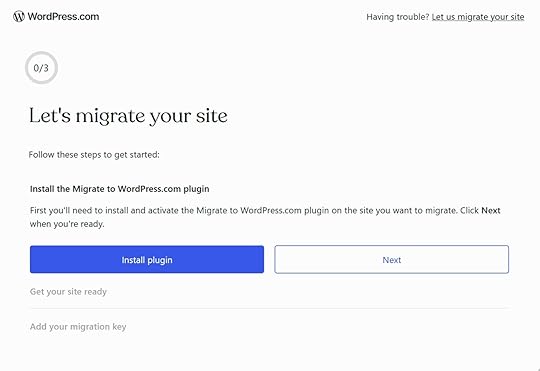
You can now choose a migration method and set up a safe environment to practice moving your site.
Here’s how:
Choose a migration method: The Migrate to WordPress.com plugin makes it very easy to move your site to WordPress.com, with most sites completing the migration in less than 10 minutes.If you have either the WordPress.com Business or Commerce plan, our expert team can handle the migration for you at no cost, while your live site remains unaffected.Create a test environment: Set up a staging site, a WordPress.com test site, or a local WordPress installation to practice the migration.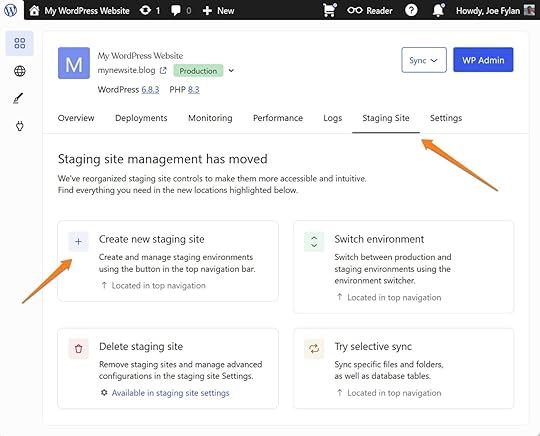
Tip: If migrating your WordPress site to another web host, refer to this step-by-step guide.
7. Prepare your new WordPress site
In the final step before the move, get the new site ready and check that your new hosting plan meets your requirements.
Review the following:
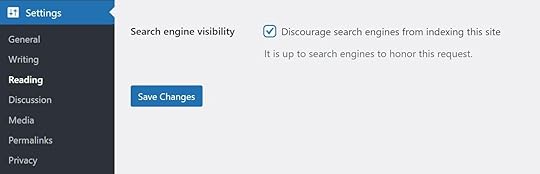
Figure out domain setup: Decide whether your site will use a new domain or continue with the existing one after the move. Using your existing domain with WordPress.com hosting is straightforward, and the documentation walks you through the steps. Create a new WordPress site: Set up a fresh WordPress installation at your new host. Keep it empty — don’t add posts, pages, or extra settings — so there’s nothing that could conflict with the content you’ll import. Make sure it’s running the latest versions of WordPress and PHP to match your current site.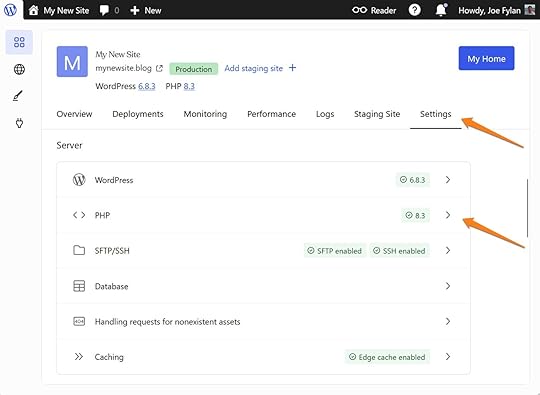 Manage search engine visibility: Instruct search engines not to index the new site (not yet). This is enabled by default for new sites on WordPress.com as part of the coming soon mode. For other hosts, enable the “Discourage search engines from indexing this site” setting (WP Admin → Settings → Reading).
  Check hosting plan resources: Find out how much storage and bandwidth your site uses (this information is available from your current host). Make sure the new hosting plan meets these requirements. WordPress.com plans have unmetered bandwidth and varying amounts of storage.Assess your new hosting plan: Check whether it has features that can replace plugins you’re currently using. For example, the WordPress.com plans include many features, such as forms, backups, security, and SEO tools. 8. Transfer your site and its content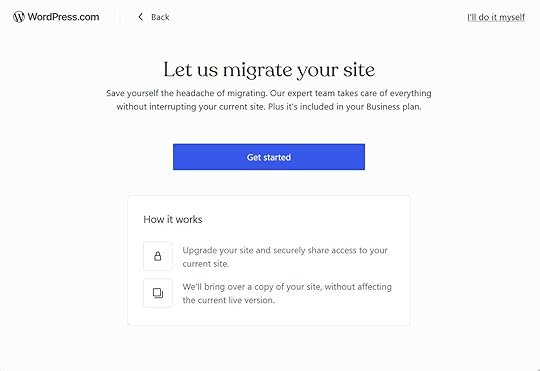
Once you’ve tested the migration and prepared the new site, it’s time to move your WordPress site to its new home.
Start the migration: Use the same method as when you tested the migration. If moving to WordPress.com, this could be the done-for-you service or the Migrate to WordPress.com plugin. Follow this guide if moving to another host.Set site visibility: The coming soon mode is enabled by default on new WordPress.com sites, but you should check that it’s still active after the migration.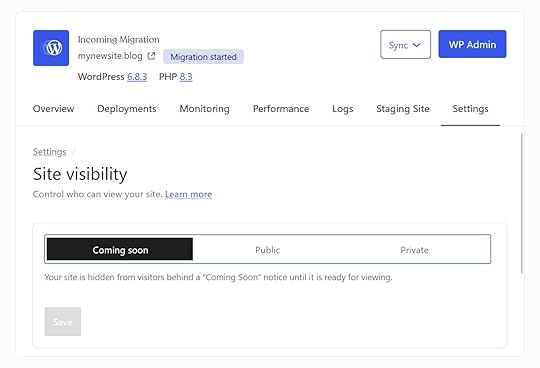 9. Connect your domain and secure the site
After the migration, connect your domain and enable SSL so visitors can safely use the site.
Make sure to:
Update domain settings: Change the or DNS records at your domain registrar so that your domain points to your new hosting provider. This guide explains how to connect a domain to a site hosted by WordPress.com.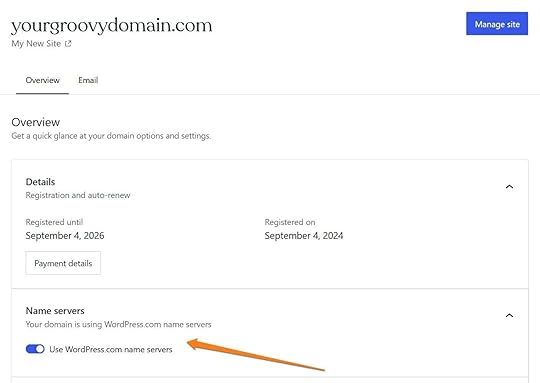 Enable SSL: This ensures the site loads over “
https://”
and data is encrypted as it is transferred between the site and the visitor’s browser to keep it private and secure. Some hosts take care of this for you. For example, SSL is enabled by default on sites hosted by WordPress.com.
Enable SSL: This ensures the site loads over “
https://”
and data is encrypted as it is transferred between the site and the visitor’s browser to keep it private and secure. Some hosts take care of this for you. For example, SSL is enabled by default on sites hosted by WordPress.com. 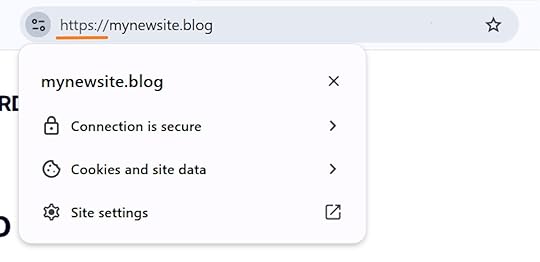 10. Test, redirect, and monitor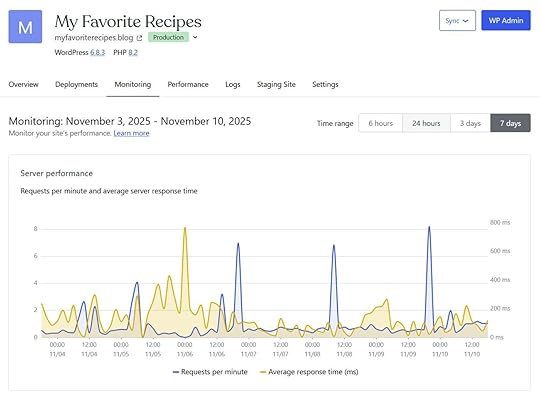
Make sure that everything works correctly and your SEO and performance are intact after migration.
Here’s what to consider:
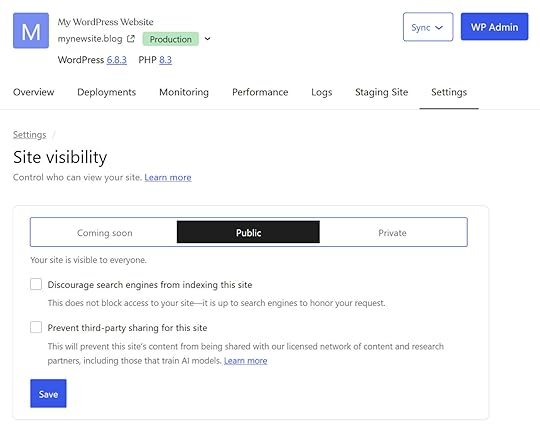
General verification: Visually check that all posts and pages have been transferred and load correctly. Verify the theme, plugins, menus, forms, logins, and all eCommerce features work as expected.Mobile responsiveness: Ensure your site functions smoothly across different devices.Meta tags and headings: Check that the title tags, meta descriptions, and heading structures of your content are intact.Redirects: If using your existing domain, visitors will be automatically directed to your new site and its pages when following a link or entering a URL. If you’ve changed the URLs of any content, create 301 redirects for them to preserve SEO and prevent broken links. Use this free online tool to check that the redirects are working.Error pages and broken links: Use Google Search Console to identify and fix 404 errors or missing pages.Backlinks and internal links: Refer to your SEO audit from Step 4 and verify that high-value backlinks and internal links still point to the correct pages.Sitemaps and robots.txt: Use Google Search Console to check that your site’s XML sitemaps are up to date and accessible, and that your site’s robots.txt file isn’t causing any issues.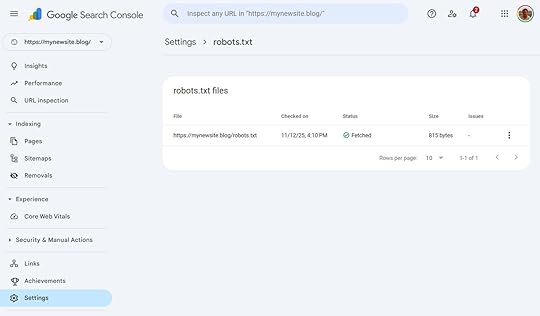 Compare performance: Rerun site speed tests using the same tools to confirm your site performs as well as or better than before.Make your website public: Make sure the “Discourage search engines from indexing this site” option isn’t checked.
  Monitor: Track site analytics, including Jetpack Stats and Google Search Console for any traffic or ranking changes.Cancel old hosting: Once everything is stable, decommission your site’s previous hosting environment.
Testing, checking redirects, and monitoring your site are the final steps in a successful migration.
Tip: If you’re moving to the WordPress.com Business or Commerce plan, you can use the Site Monitoring tool to detect and resolve many of these issues.
Move your WordPress site with confidenceThis checklist walks you through every step of migrating a WordPress site to a new host.
If you’re moving to WordPress.com, you can use either the migration plugin or — on Business and Commerce plans — our free migration service to handle the process for you.
WordPress.com also gives you strong performance, reliable uptime, built-in security, and access to plugins on all paid plans.
With the right preparation and a clear plan, your site will migrate smoothly, keep its SEO intact, and stay accessible to your audience throughout the transition.
Move your website to WordPress.com

November 24, 2025
Managed vs. Shared WordPress Hosting: Which is Best for You?
When you’re starting a website, hosting can feel like one of the trickier choices — especially if you’re trying to balance cost, performance, security, and simplicity.
In short, shared hosting is the budget-friendly option where multiple websites share the same server, while managed WordPress hosting offers better speed, security, and automatic maintenance.
This guide breaks down how each option works, what you get with managed WordPress hosting, and how to choose the best fit for your needs.
TL;DR: Managed WordPress hosting vs. shared hostingManaged WordPress hosting takes care of hosting, advanced security, automatic updates, and ongoing maintenance for your WordPress site. Shared WordPress hosting, on the other hand, provides hosting and basic server-level security, but leaves most site-specific maintenance and performance tasks to you.
Here’s a quick summary:
Managed WordPress hostingShared WordPress hostingHandles all the technical upkeep — from updates and security to backups and optimization. It usually runs on virtual private or dedicated servers optimized for WordPress performance.Hosts multiple websites on the same server with shared resources and basic security. It’s the most affordable option, but comes with trade-offs in speed, reliability, and support.Tip: Not all “managed WordPress hosting” is truly managed — some providers simply bundle shared hosting with basic tools. With WordPress.com, you get expert support, advanced security, global infrastructure, and a 99.999% uptime guarantee.
Managed WordPress hosting vs. shared hosting: what’s the user experience like?The main differences between managed WordPress hosting and shared hosting include cost, speed, maintenance, customization, and support.
These factors affect your site’s performance, budget, and time investment.
SpeedThe main difference in speed between managed and shared hosting is stability — managed hosting keeps your site fast and responsive even under heavy traffic, while shared hosting performance drops as more websites compete for the same resources.
Managed WordPress hosting: Your website loads in milliseconds, powered by global CDNs (Content Delivery Networks) that deliver content from the nearest location.
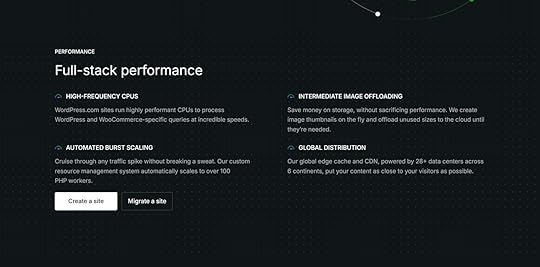
On WordPress.com, for example, your website is powered by our Global Edge Caching with 28+ data centers to deliver your site content from servers closest to each visitor.
During one of the latest AWS outages, many websites went offline — but WordPress.com stayed up.
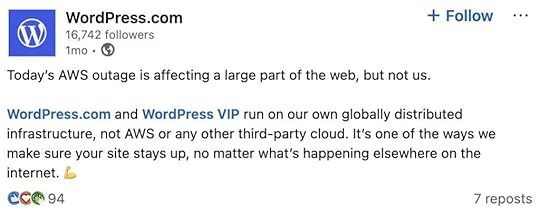
Since all WordPress.com websites run on our own global infrastructure — we don’t rely on AWS or other third-party clouds — your site always remains online, no matter what issue arises on the web.
Shared hosting: Websites on shared servers run more slowly because multiple sites compete for the same resources.
Upgrading to a higher-tier plan can help by adding SSD storage and improving read/write speeds (how fast the server accesses your files and databases).
Still, even premium shared plans can’t guarantee consistent speed — resource limits eventually cap performance.
You shouldn’t be penalized for growth. Upgrade to a managed hosting plan on WordPress.com from $4/month (annual billing) for unlimited traffic, unmatched speed, and 99.999% uptime.
MaintenanceThe key difference in maintenance between managed and shared hosting is the level of responsibility — managed hosting covers all backups, updates, and security patches, while shared hosting requires you to troubleshoot on your own.
Managed WordPress hosting: Your managed WordPress hosts handle all technical maintenance, like:
Automatic core updates so your website runs on the latest and most secure version of WordPress.Regular backups, where you can easily restore your website in a few clicks if anything breaks. Real-time security monitoring to keep your WordPress site secure 24/7.This lightens your technical workload, saving you several hours weekly to reinvest in your site and business.
Shared hosting: Shared web hosts usually offer basic backups, updates, and security — the scope of site maintenance will ultimately depend on your provider and hosting plan. With shared hosts, expect more work to maintain your website.
FlexibilityThe main difference in flexibility between managed and shared hosting lies in control — shared hosting gives you more freedom to install anything, while managed WordPress hosting prioritizes stability and security by including trusted features out of the box.
Managed WordPress hosting: Hosts may limit certain plugins or themes to maintain top performance and security across their infrastructure.
However, because your host handles all technical tasks for you, you rarely need extra plugins to achieve the same results.
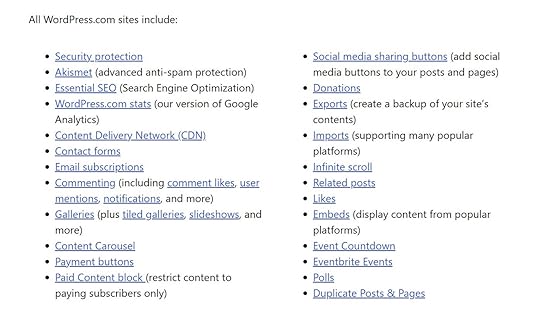
If you’re using WordPress.com, most key features related to security, analytics, SEO, etc., are already built into the platform:
Shared hosting: Some hosting providers may limit themes and plugins to optimize performance for all websites on the same server, while others offer more flexibility.
Even though the latter may seem like an attractive perk, it risks you installing unsuitable plugins that compromise your site speed and security.
SupportThe key difference in support is expertise — managed WordPress hosting gives you access to WordPress specialists, while shared hosting relies on general support teams that handle many platforms.
Managed WordPress hosting: Managed hosts provide high-quality, specialized support. Since these specialists work only with WordPress, they possess years of in-depth knowledge.
Whether it’s a plugin conflict or a faulty media button, they’ve likely encountered and solved all these common issues within minutes.
Shared hosting: You might experience inconsistent support from generalists.
Because shared hosting providers cater to customers using different web platforms, the level of expertise may vary.
CostThe key difference in cost comes down to what you’re paying for — shared hosting is cheaper but limited, while managed WordPress hosting might cost more because it includes speed, security, scalability, and hands-off maintenance.
Managed WordPress hosting: Prices range from $10 to $2,000+ (for enterprises) per month, depending on your server type.
This is mainly because managed hosting delivers premium performance, advanced security, and full technical management.
Tip: WordPress.com gives you more flexibility when budgeting for hosting. You can start with the Personal plan ($4/month on annual billing) and upgrade to Business ($25/month) or higher as your needs grow. All plans include unlimited bandwidth and visits.
Shared hosting: Typically costs $2-$15/month and suits small or starter sites.
However, you share resources with many other websites, which slows performance as traffic increases.
For growing or ecommerce sites, these trade-offs often outweigh the savings — a fast, managed plan quickly pays for itself.
What do you get with managed WordPress hosting?You get all the technical staples in managed WordPress hosting, including automatic backups, quality WordPress support, speed, and enterprise-grade security. Here’s a deeper look.
Bandwidth and traffic-based pricingManaged WordPress hosting is designed to handle traffic spikes smoothly, but some providers still charge based on bandwidth or monthly visits.
When your traffic grows, your costs can rise — or performance can dip — depending on their limits.
For example, if your site doubles from 65,000 to 125,000 monthly visits, your plan might increase from about $50 to $90 per month, adding roughly $480 annually.
Fortunately, WordPress.com is different: every plan includes unlimited bandwidth and visits for a fixed monthly price. Your site stays fast and accessible during viral spikes — with no surprise fees.
Site backupsManaged WordPress hosting typically includes automated daily backups with 14-30 days of storage, allowing quick one-click recovery if something goes wrong.
Most providers also let you create on-demand backups for major updates or changes.
WordPress.com provides enhanced protection through real-time cloud backups powered by Jetpack VaultPress Backup. On eligible plans, you can restore backups from your archive (typically up to 30 days, or longer on select plans).
Improved speedManaged WordPress hosts speed up your website through a WordPress-optimized infrastructure with multiple CDNs across the world.
This ensures your site remains fast no matter where visitors are located.
At WordPress.com, two core features keep your website consistently fast:
Site Accelerator CDN: Reduces server load by offloading your image and static files.Global Edge Caching: Routes content from data centers closest to your visitors.SecurityManaged WordPress hosts protect your website through SSL certificates, advanced brute-force defense, automated malware scanning, and continuous monitoring to keep you safe from cyber attacks.
Many providers, including WordPress.com, offer free domain privacy (where available), which hides your domain contact information, like your address and phone number, from the public.
To further boost your site security, you can use plugins like Akismet to block spam and Jetpack Scan to detect security threats and vulnerabilities.
ReliabilityManaged WordPress hosting is built for maximum uptime and stability, keeping your website online even during unexpected network issues.
Most leading hosts promise 99.9% uptime, which still allows for about 43 minutes of downtime per month.
WordPress.com goes a step further with infrastructure engineered for 99.999% uptime. This makes downtime extremely rare compared to other hosts.
Automatic updatesManaged WordPress hosts also handle all technical maintenance automatically, including the WordPress core, theme, and plugin updates — freeing you up hours to focus on your website, passion, and business.
Similarly, WordPress.com manages all technical updates automatically.
Our team keeps your site running on the latest, most secure version of WordPress — so you don’t have to worry about manual updates or constant monitoring.
Staging sitesManaged WordPress hosts provide a staging environment to safely test themes, plugins, design changes, and updates without risking your actual website’s functionality.
You can usually clone your site with just one click.
Then, make your updates, check that everything works as expected, and publish the changes to your live site when you’re ready.
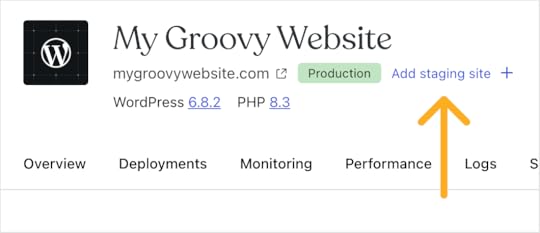
On WordPress.com, you can access this feature on the Business and Commerce plans.
Migration servicesManaged WordPress hosting typically offers free migration services with no downtime, either through one-click plugins or manual services — both options axe all technical headaches when moving to a new hosting company.
On WordPress.com, you can use the Migrate to WordPress.com plugin or request a free expert migration (available for Business and Commerce plans). Your live site stays online during the process, and most migrations finish within 2-3 business days.
Specialized customer supportManaged WordPress hosts have teams that know WordPress inside and out.
They can spot and fix tricky issues — whether it’s a plugin conflict, a broken layout, or something slowing down your site — typically faster than general hosting providers.
On WordPress.com, free plan users can get help through our active community forums, while paid plan users get access to our Happiness Engineers — a global team spread across 18 time zones, ready to help whenever you need it.
How do you know if managed WordPress hosting is the right choice?Managed WordPress hosting is the right choice if you want to solve technical issues before they impact your website, protect it 24/7, and reclaim hours while specialists handle ongoing maintenance.
Still undecided?
Ask yourself these questions to see if managed WordPress hosting is the right fit for your website:
Are you planning to grow your website traffic or functionality in the future?Do you prefer experts to handle your WordPress core, plugin, and theme updates — and save yourself from technical headaches?Can you benefit from redirecting the hours spent on technical maintenance toward your website’s growth?Would downtime or a security breach harm your business or brand?If you answered yes to most of these questions, you can’t go wrong with managed WordPress hosting.
Launch your website on WordPress.com todayThe kind of hosting you choose shapes how much time you spend managing your site versus growing it.
While shared hosting can work for smaller or temporary projects, managed WordPress hosting gives you the freedom to grow without worrying about updates, backups, or downtime.
On WordPress.com, you get that extra layer of care.
Our team handles updates, security, and performance in the background, so you can stay focused on creating and running your site.
Host your website on WordPress.comNovember 21, 2025
20 Years of WordPress.com: Show Us What You’ve Built
Today, we’re celebrating 20 years of WordPress.com! We set out to put the power of publishing into everyone’s hands, and since then, millions of you have used it to build amazing things.
Our beginnings and our purposeOn June 20, 2005, WordPress project co-founder Matt Mullenweg hired Donncha Ó Caoimh (a software developer and WordPress contributor) and Automattic was born. Their mission: create a hosted version of WordPress that anyone could use.
After beta testing in August 2005, WordPress.com launched publicly on November 21, 2005. Here’s what the homepage looked like:
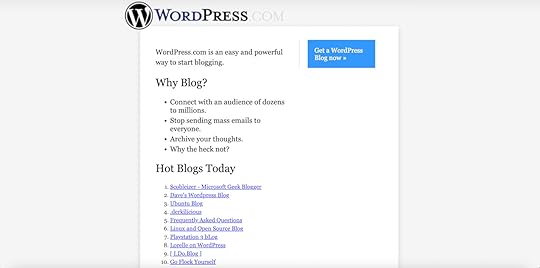 Why the heck not, indeed! (Source: Internet Archive)
We’ve come a long way from these humble beginnings, but our purpose hasn’t changed much: democratizing publishing and ecommerce.
A place for every websiteToday, WordPress.com powers all kinds of websites. People all around the world use our platform to build:
Professional portfolios where creatives showcase their work and attract new clients, like standup comedian Aparna Nancherla, film director Mike Flanagan, and visual artist Ana Teresa Fernández.Membership communities that bring together people with shared interests, like the Bedfordshire Bird Club.Cutting-edge educational websites from institutions like the UC Berkeley Center for Psychedelics.Popular blogs like the experimental art project PostSecret, sci-fi author John Scalzi’s Whatever, and food blogger Vegan Bunny Elle.This is just a small handful of examples. From simple sites to online stores, no matter what you want to create and share on the web, WordPress.com gives you the tools to make it happen.
What are you creating with WordPress.com?The WordPress.com story isn’t just ours. It also belongs to everyone who has chosen our platform to create and share on the web.
From our first homepage to the millions of sites hosted on our platform today, every WordPress.com website represents someone who decided to put their ideas into the world. We’re honored to be part of that journey.
Tell us your story. How did you find WordPress.com? What have you built? Drop a comment below! After 20 years, we still love seeing what you’re creating.
November 20, 2025
How Does Open Source Make WordPress Different (and Better)?
WordPress’s open source nature gives you true ownership and flexibility for your website. Unlike proprietary site builders, it allows you full control over every aspect of your site — from hosting and design to performance and functionality.
This matters because your website is a long-term asset. The platform you choose establishes the foundation for everything you do with it, now and in the future.
To help you make the right choice, in this guide, I’ll break down what “open source” means and why it sets WordPress apart from other site builders.
What does “open source” actually mean?Open source refers to software (like WordPress) whose source code is open for anyone to view, use, and change.
It’s built under licenses that encourage people to contribute, share ideas, fix bugs, and make improvements together — so the tools they build can be publicly available, most often for free.
For example, WordPress uses the GNU General Public License (GPL), which allows anyone to freely use, modify, and share the software under the same open terms:
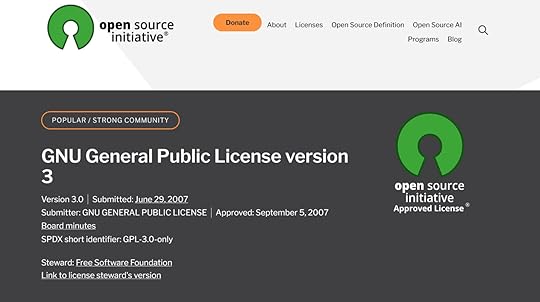
This is very different from closed-source or commercial software, where the code is private and only the company that owns it can make changes.
Other main distinctions include:
Ownership and control: Open source projects are often built and maintained by communities of volunteers. Closed-source products belong to one company.Cost and use: Most open source tools are free to use and customize, while closed-source tools usually cost money and come with restrictions on what you can do with them.Open source has been quite the success story, with some big names falling under its umbrella:
Android holds over 70% of the mobile OS marketLinux powers 63.1% of servers and 100% of all supercomputersPHP is found on over 73% of all websitesVLC Media Player recently crossed six billion downloadsWhy WordPress defines open source successWordPress is the most widely used open source CMS in the world — powering over 43% of all websites (along with other impressive statistics).
This dominance highlights just how far open source platforms have come in comparison to proprietary site builders:
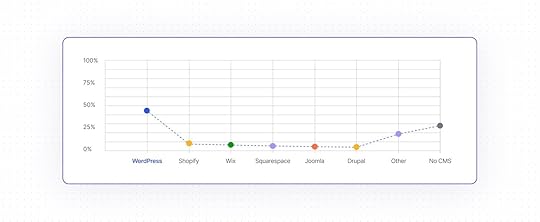
Long story short: WordPress gives users full freedom to modify, host, and distribute their sites however they choose.
This open model is what makes the platform fundamentally different from proprietary site builders.
Instead of locking users into one ecosystem, it lets them own and control their entire web presence. That distinction becomes even clearer when you look at it in more detail.
Open source platforms vs. proprietary site buildersWith an open source solution like WordPress, you’re in control of your website’s code, content, and future. You can fully choose how you set up and manage your site.
Here’s a quick overview:
Key factorsOpen source platforms like WordPressTypical proprietary website buildersCostFree core software, with flexible costs for hosting, domains, and optional paid features.Subscription-based monthly/annual plans.OwnershipFull ownership — you can choose a hosting provider, as well as export and migrate your site any way you want, including when you build it on WordPress.com.Limited control — exporting or migrating is restricted, complicated, or impossible.DesignThousands of free and paid themes; full code access to make custom changes.Drag-and-drop editors with templates; design freedom varies, and some features may require more expensive tiers.FeaturesExtendable through thousands of free and paid plugins as well as custom code.Ecosystems are closed; integrations and features are limited to approved app stores or internal tools.PerformanceDepends on your hosting environment and setup, but it’s fully customizable through caching, CDNs, server configurations, and other optimizations.Automatically optimized, but with limited tuning options.SecurityDetermined by the security features of your hosting provider and site setup, fully modifiable.The platform manages most security, and users rely on the vendor’s protection.ScalabilityCan support everything from small blogs to enterprise sites (e.g., major media sites).Good for personal/business sites; less suited for massive global-scale websites.Developer featuresFull access to source code, custom themes/plugins, and database control (Business or higher on WordPress.com).Limited or no access to underlying code; customization restricted to platform tools and APIs.SupportWordPress.com provides 24/7 support, and there are thousands of community-based options like forums, tutorials, and freelancers.Centralized customer support from the platform.Developer ecosystemHuge global community of theme and plugin developers, agencies, and freelancers.Smaller, proprietary developer ecosystems.Why choose open source for your website? A deeper diveChoosing WordPress and open source lets you build any kind of website you want — and truly make it your own, all at a great price point.
It means your site will run on a system that’s secure, proven, and well-maintained, with a great support infrastructure, and no ecosystem lock-in.
Let’s look at some of these benefits in detail.
1. Full website ownershipWordPress allows you to own every part of your website.
That includes its files, content, and all other data. You can download, back up, or migrate your site at any time.
You can even run it locally using WordPress Studio, which creates a virtual server environment on your computer — perfect for practicing your skills and testing new ideas safely.
With a website built on a proprietary platform, you don’t have these freedoms. Access to files is usually limited or non-existent, your site is bound to the vendor, and they make it hard to move off their platform. If you want to take your website elsewhere, you often have to rebuild it and copy content over by hand.
This is not the case with WordPress. You always have the option to move your site, just the way it is, with the same design, features, and content.
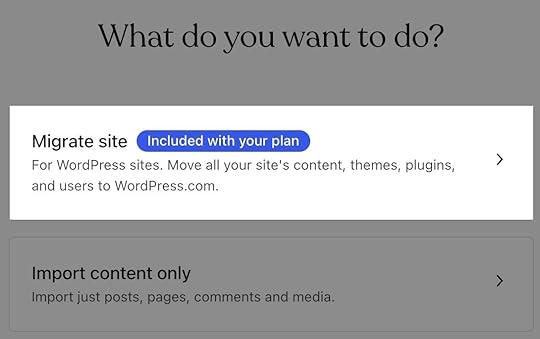
That includes websites hosted on WordPress.com. You can export your content or entire website as well as import content from another site or migrate your self-hosted site to WordPress.com. In fact, WordPress.com will do the migration for you — for free!
2. Customization options: themes, plugins, and moreWordPress gives you full creative control and offers the tools, parts, and flexibility to build anything you might need, from a small business site or a food blog to a personal or enterprise site.
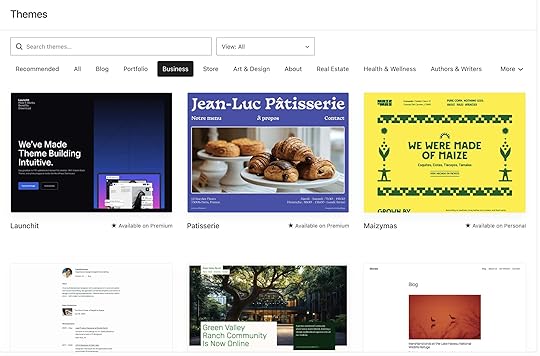
First, choose from thousands of free and premium themes designed for multiple purposes — from blogs and portfolios to stores and business sites.
They let you change your entire site design with just a few clicks.
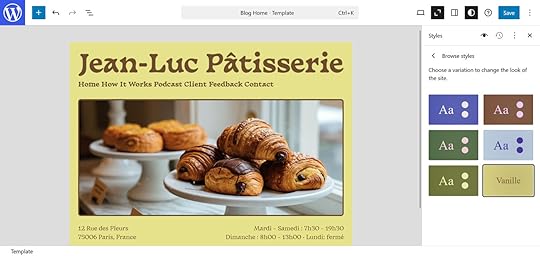
From here, you can customize your site in any way you want and adapt site-wide settings like colors and fonts directly in the drag-and-drop block editor.
Patterns — reusable design elements — help you put together entire layouts quickly.
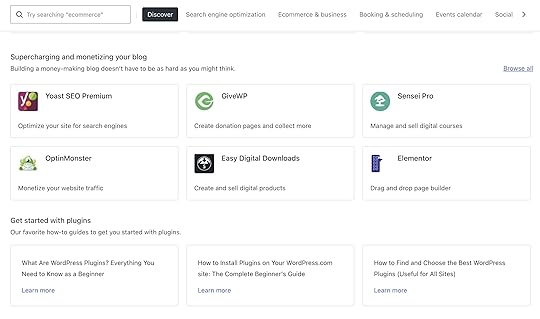
Then, extend your site’s functionality even further with plugins to add features for SEO, eCommerce, contact forms, analytics, and more (check out the most popular plugins on WordPress.com).
Finally, developers and advanced users can also use custom code or connect external services and APIs (with no limits on the Business plan and higher on WordPress.com).
Tip: WordPress.com users can also generate and customize their websites using simple text prompts with our AI website builder:
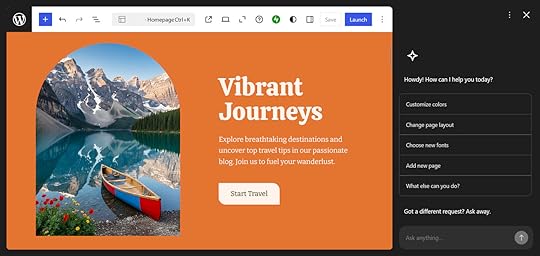
In short, unlike closed platforms, WordPress doesn’t lock you into a fixed design or feature set.
You have the freedom to integrate, expand, and grow your website exactly how you want.
3. Platform maturity and securityWordPress is powered by a global community of developers, researchers, and companies who keep the software secure and up to date.
WordPress.com is part of that community — and through its parent company, Automattic, it provides the largest share of core contributors.
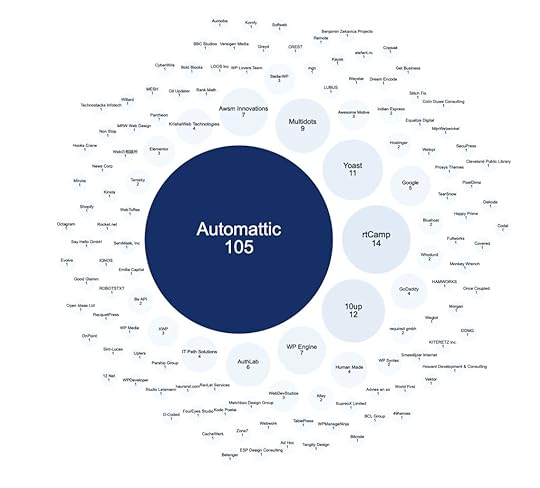
The community maintains a predictable update cycle that regularly introduces new features, security improvements, and performance upgrades to WordPress.
The upcoming WordPress 6.9 release is a great example. Check out the video below for more information:
The result: a secure, well-tested platform that’s proven itself across thousands of different environments.
Besides, the sheer number of people contributing to WordPress — and the platform’s open, public codebase — means vulnerabilities and other issues are quickly spotted and fixed.
Its decentralized structure empowers anyone to contribute improvements, rather than relying on a single central entity to do so.
Yet while the core software is mature and secure, overall site safety also depends on following best practices and using a reliable hosting environment. That’s why WordPress.com includes automatic updates, backups, SSL certificates, and DDoS protection with every plan. The Business and Commerce plans also include Jetpack’s built-in spam filtering, activity logs, and downtime monitoring.
4. Community support and shared knowledgeSupport and learning are where WordPress’s open source roots really shine.
The sheer size of its community means you’ll find endless tutorials and advice for every skill level.
On WordPress.com alone, support options include detailed guides, courses, support forums, and expert help via live chat.
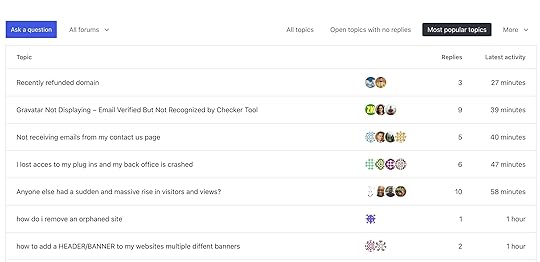
As a WordPress user, you’ll find that nearly every problem you might face has already been solved — and documented — by someone in the community.
You’ll never be without help, and you’re never locked into a single vendor or support channel.
Tip: Another highlight is in-person meetings like WordCamps, where you can connect with other WordPress users, listen to informative presentations, and learn from each other.
6. Growth and innovationBecause WordPress is open source and powered by a global community, it keeps improving and growing faster than most commercial platforms ever could.
Developers constantly build improvements, extensions, and tools that make the software more useful and user-friendly.
One of the best examples of this is the thousands of themes and plugins created by the community.
Some of these extensions become so successful that they eventually become default features of WordPress itself — like the Block Editor, WordPress REST API, and auto-embeds.
Besides, WordPress has multiple tools that make life easier for the developers themselves.
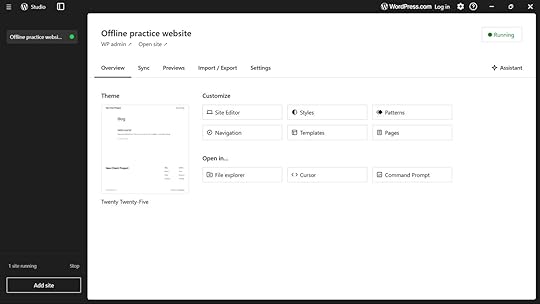
For example, WordPress Studio is a free, open source app from WordPress.com. It lets you spin up local WordPress sites, sync changes with the live site, and share preview links with clients.
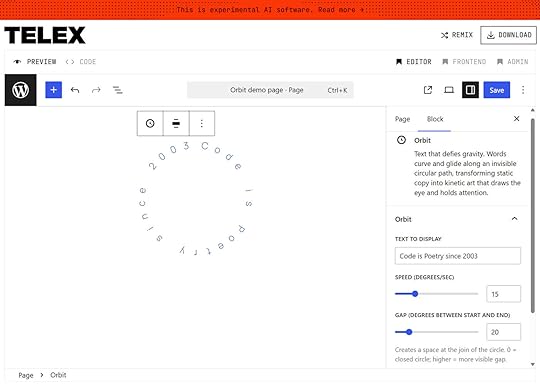
Another great example is Telex — an experimental AI tool from Automattic that lets you describe your idea in plain language and generates a fully functional WordPress block you can install on your site.
 Why choose WordPress.com to host open source WordPress?
WordPress.com gives you a managed WordPress experience — everything is set up, optimized, and maintained for you.
You don’t have to handle installation, hosting, security, performance, or software updates. WordPress.com takes care of it automatically, so your site runs reliably without extra effort.
Protection and performance features you get include:
Servers specifically optimized for WordPressAutomatic backups and malware scanningFree SSL certificates and spam protectionA web application firewall (WAF) and DDoS protectionReal-time backups, one-click restore, and uptime monitoring on Business and Commerce plansExpert support is also available whenever you need it. Every plan includes unlimited pages, users, bandwidth, and traffic — plus a free domain for your first year on paid plans.
Opt for WordPress and open source for long-term growthOpen source isn’t just a technical choice, but a decision for flexibility, freedom, and future-proofing your online presence.
When you build your website on WordPress, you’re choosing a platform that grows with you, adapts to your needs, and never holds your content hostage.
With WordPress.com, you get the best of both worlds: the power and flexibility of open source combined with the ease and reliability of managed hosting.
Build your WordPress website todayHow Does Open Source Make WordPress Different (And Better)?
WordPress’s open-source nature gives you true ownership and flexibility for your website. Unlike proprietary site builders, it allows you full control over every aspect of your site — from hosting and design to performance and functionality.
This matters because your website is a long-term asset. The platform you choose establishes the foundation for everything you do with it, now and in the future.
To help you make the right choice, in this guide, I’ll break down what “open source” means and why it sets WordPress apart from other site builders.
What does “open source” actually mean?Open source refers to software (like WordPress) whose source code is open for anyone to view, use, and change.
It’s built under licenses that encourage people to contribute, share ideas, fix bugs, and make improvements together — so the tools they build can be publicly available, most often for free.
For example, WordPress uses the GNU General Public License (GPL), which allows anyone to freely use, modify, and share the software under the same open terms:
This is very different from closed-source or commercial software, where the code is private and only the company that owns it can make changes.
Other main distinctions include:
Ownership and control: Open-source projects are often built and maintained by communities of volunteers. Closed-source products belong to one company.Cost and use: Most open-source tools are free to use and customize, while closed-source tools usually cost money and come with restrictions on what you can do with them.Open source has been quite the success story, with some big names falling under its umbrella:
Android holds over 70% of the mobile OS marketLinux powers 63.1% of servers and 100% of all supercomputersPHP is found on over 73% of all websitesVLC Media Player recently crossed six billion downloadsWhy WordPress defines open source successWordPress is the most widely used open-source CMS in the world — powering over 43% of all websites (along with other impressive statistics).
This dominance highlights just how far open-source platforms have come in comparison to proprietary site builders:
Long story short: WordPress gives users full freedom to modify, host, and distribute their sites however they choose.
This open model is what makes the platform fundamentally different from proprietary site builders.
Instead of locking users into one ecosystem, it lets them own and control their entire web presence. That distinction becomes even clearer when you look at it in more detail.
Open-source platforms vs. proprietary site buildersWith an open‑source solution like WordPress, you’re in control of your website’s code, content, and future. You can fully choose how you set up and manage your site.
Here’s a quick overview:
Key factorsOpen source platforms like WordPressTypical proprietary website buildersCostFree core software, with flexible costs for hosting, domains, and optional paid features.Subscription-based monthly/annual plans.OwnershipFull ownership — you can choose a hosting provider, as well as export and migrate your site any way you want, including when you build it on WordPress.com.Limited control — exporting or migrating is restricted, complicated, or impossible.DesignThousands of free and paid themes; full code access to make custom changes.Drag-and-drop editors with templates; design freedom varies, and some features may require more expensive tiers.FeaturesExtendable through thousands of free and paid plugins as well as custom code.Ecosystems are closed; integrations and features are limited to approved app stores or internal tools.PerformanceDepends on your hosting environment and setup, but it’s fully customizable through caching, CDNs, server configurations, and other optimizations.Automatically optimized, but with limited tuning options.SecurityDetermined by the security features of your hosting provider and site setup, fully modifiable.The platform manages most security, and users rely on the vendor’s protection.ScalabilityCan support everything from small blogs to enterprise sites (e.g., major media sites).Good for personal/business sites; less suited for massive global-scale websites.Developer featuresFull access to source code, custom themes/plugins, and database control (Business or higher on WordPress.com).Limited or no access to underlying code; customization restricted to platform tools and APIs.SupportWordPress.com provides 24/7 support, and there are thousands of community-based options like forums, tutorials, and freelancers.Centralized customer support from the platform.Developer ecosystemHuge global community of theme and plugin developers, agencies, and freelancers.Smaller, proprietary developer ecosystems.Why choose open source for your website? A deeper diveChoosing WordPress and open source lets you build any kind of website you want — and truly make it your own, all at a great price point.
It means your site will run on a system that’s secure, proven, and well-maintained, with a great support infrastructure, and no ecosystem lock-in.
Let’s look at some of these benefits in detail.
1. Full website ownershipWordPress allows you to own every part of your website.
That includes its files, content, and all other data. You can download, back up, or migrate your site at any time.
You can even run it locally using WordPress Studio, which creates a virtual server environment on your computer — perfect for practicing your skills and testing new ideas safely.
With a website built on a proprietary platform, you don’t have these freedoms. Access to files is usually limited or non-existent, your site is bound to the vendor, and they make it hard to move off their platform. If you want to take your website elsewhere, you often have to rebuild it and copy content over by hand.
This is not the case with WordPress. You always have the option to move your site, just the way it is, with the same design, features, and content.
That includes websites hosted on WordPress.com. You can export your content or entire website as well as import content from another site or migrate your self-hosted site to WordPress.com. In fact, WordPress.com will do the migration for you — for free!
2. Customization options: themes, plugins, and moreWordPress gives you full creative control and offers the tools, parts, and flexibility to build anything you might need, from a small business site or a food blog to a personal or enterprise site.
First, choose from thousands of free and premium themes designed for multiple purposes — from blogs and portfolios to stores and business sites.
They let you change your entire site design with just a few clicks.
From here, you can customize your site in any way you want and adapt site-wide settings like colors and fonts directly in the drag-and-drop block editor.
Patterns — reusable design elements — help you put together entire layouts quickly.
Then, extend your site’s functionality even further with plugins to add features for SEO, eCommerce, contact forms, analytics, and more (check out the most popular plugins on WordPress.com).
Finally, developers and advanced users can also use custom code or connect external services and APIs (with no limits on the Business plan and higher on WordPress.com).
Tip: WordPress.com users can also generate and customize their websites using simple text prompts with our AI website builder:
In short, unlike closed platforms, WordPress doesn’t lock you into a fixed design or feature set.
You have the freedom to integrate, expand, and grow your website exactly how you want.
3. Platform maturity and securityWordPress is powered by a global community of developers, researchers, and companies who keep the software secure and up to date.
WordPress.com is part of that community — and through its parent company, Automattic, it provides the largest share of core contributors.
The community maintains a predictable update cycle that regularly introduces new features, security improvements, and performance upgrades to WordPress.
The upcoming WordPress 6.9 release is a great example. Check out the video below for more information:
The result: a secure, well-tested platform that’s proven itself across thousands of different environments.
Besides, the sheer number of people contributing to WordPress — and the platform’s open, public codebase — means vulnerabilities and other issues are quickly spotted and fixed.
Its decentralized structure empowers anyone to contribute improvements, rather than relying on a single central entity to do so.
Yet while the core software is mature and secure, overall site safety also depends on following best practices and using a reliable hosting environment. That’s why WordPress.com includes automatic updates, backups, SSL certificates, and DDoS protection with every plan. The Business and Commerce plans also include Jetpack’s built-in spam filtering, activity logs, and downtime monitoring.
4. Community support and shared knowledgeSupport and learning are where WordPress’s open-source roots really shine.
The sheer size of its community means you’ll find endless tutorials and advice for every skill level.
On WordPress.com alone, support options include detailed guides, courses, support forums, and expert help via live chat.
As a WordPress user, you’ll find that nearly every problem you might face has already been solved — and documented — by someone in the community.
You’ll never be without help, and you’re never locked into a single vendor or support channel.
Tip: Another highlight is in-person meetings like WordCamps, where you can connect with other WordPress users, listen to informative presentations, and learn from each other.
6. Growth and innovationBecause WordPress is open source and powered by a global community, it keeps improving and growing faster than most commercial platforms ever could.
Developers constantly build improvements, extensions, and tools that make the software more useful and user-friendly.
One of the best examples of this is the thousands of themes and plugins created by the community.
Some of these extensions become so successful that they eventually become default features of WordPress itself — like the Block Editor, WordPress REST API, and auto-embeds.
Besides, WordPress has multiple tools that make life easier for the developers themselves.
For example, WordPress Studio is a free, open‑source app from WordPress.com. It lets you spin up local WordPress sites, sync changes with the live site, and share preview links with clients.
Another great example is Telex — an experimental AI tool from Automattic that lets you describe your idea in plain language and generates a fully functional WordPress block you can install on your site.
Why choose WordPress.com to host open‑source WordPress?WordPress.com gives you a managed WordPress experience — everything is set up, optimized, and maintained for you.
You don’t have to handle installation, hosting, security, performance, or software updates. WordPress.com takes care of it automatically, so your site runs reliably without extra effort.
Protection and performance features you get include:
Servers specifically optimized for WordPressAutomatic backups and malware scanningFree SSL certificates and spam protectionA web application firewall (WAF) and DDoS protectionReal-time backups, one-click restore, and uptime monitoring on Business and Commerce plansExpert support is also available whenever you need it. Every plan includes unlimited pages, users, bandwidth, and traffic — plus a free domain for your first year on paid plans.
Opt for WordPress and open source for long-term growthOpen source isn’t just a technical choice, but a decision for flexibility, freedom, and future-proofing your online presence.
When you build your website on WordPress, you’re choosing a platform that grows with you, adapts to your needs, and never holds your content hostage.
With WordPress.com, you get the best of both worlds: the power and flexibility of open source combined with the ease and reliability of managed hosting.
Build your WordPress website todayNovember 19, 2025
8 Games You Can Play in WordPress Right Now
WordPress lets you do almost anything on your site — from publishing blog posts and selling products to, yes, even adding playable games.
Games can be a fun extra or even a central part of your website experience. Whether used as digital easter eggs or interactive content, they’re a creative way to surprise visitors and keep them engaged.
In this guide, we’ll cover some WordPress-compatible games and explain how to add them to your site.
1. The Google Chrome Dinosaur Game Screenshot
In the Google Chrome Dinosaur Game, players control a T. rex that runs across the screen.
As the T. rex approaches various obstacles, players must click the space bar or up arrow to jump over barriers and the down arrow to crouch.
As the game progresses, the dinosaur runs faster and faces more obstacles. A player’s score is based on how far they run before hitting an obstacle.
Most Google users have probably played the dinosaur game before, so it doesn’t require much explanation. Its placement is particularly flexible because the game rarely lasts more than a few minutes.
In addition to using it as a fun reprieve amidst long posts or dense text, you can follow Google’s lead and use it on a custom 404 “not found” page.
How to add the Dinosaur Game to your WordPress siteYou can add the Dinosaur Game to your WordPress site with the Dinosaur Game plugin.
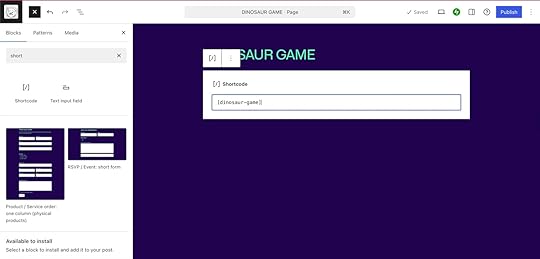
Once you’ve downloaded and activated the plugin, you can add the game to different pages with a shortcode.
Simply add a Shortcode block to the page where you want the game to appear and type in the code [dinosaur-game].
 2. Snake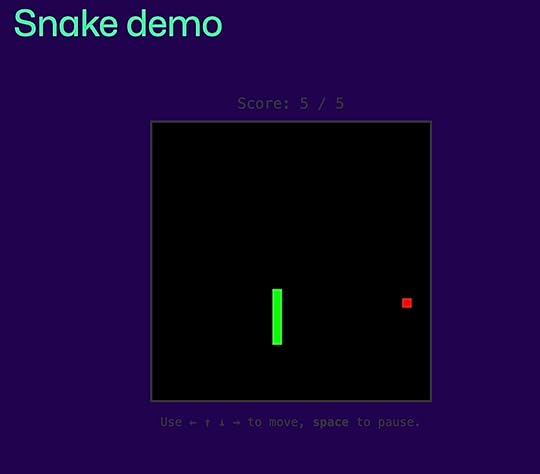
Based on a ‘70s arcade game called Blockade, Snake challenges players to use the arrow keys to control a snake as it slithers around the gameboard. The goal is to grow your snake by eating “food” on the gameboard.
However, you must dodge obstacles on the board and avoid running into your own snake’s tail. As the snake grows longer, it becomes increasingly difficult to move around the board.
With simple controls and fast gameplay, Snake has been both an arcade hit and a Nokia phone game. Now, you can also add it to WordPress for a bit of nostalgic fun.
How to add Snake to your WordPress siteSnake can be installed with the plugin Snake Retro Game Shortcode by Eskim. Simply install and activate the plugin through the Plugin Marketplace to get started.
To place the game on the page, add a Shortcode block and type in the game’s shortcode, [snake_game].
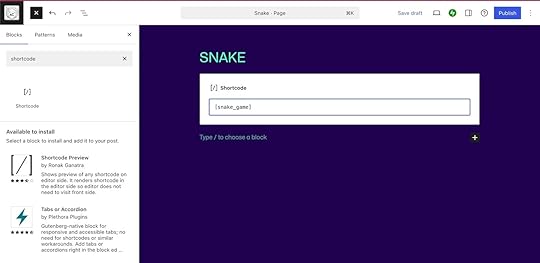
To customize the game’s colors, size, and speed, you can use additional shortcode parameters located on the Plugin’s description page.
We’ll dig in more on how to install and activate plugins at the end of this post.
3. DOOM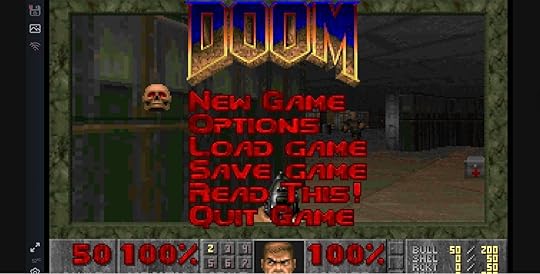
DOOM, the “father of first-person shooter games,” came out in the early ’90s and inspired an ongoing video-game franchise.
Players control an expelled space marine who must fight through radioactive waste facilities on Mars and kill enemies in hell to return to Earth.
Part of the interest and lore of the original DOOM is that it used a series of clever programming tricks to make it playable on slow, old computers, which makes it flexible and easy to run.
DOOM for WordPress was created by Rhyse Wynne, a DOOM lover and developer. Wynne built WP Doom as a custom plugin that wraps the 1993 DOOM shareware inside a JavaScript DOS emulator.
How to add DOOM to your WordPress siteThis classic shooter isn’t available as a one‑click plugin because the WP Doom plugin wraps the shareware version of the game (and therefore isn’t listed in the plugin directory).
Wynne solved this by setting up a WordPress Playground blueprint that installs the plugin and spins up a demo page.
You can’t embed the game directly into your WordPress.com site, but you can link to Wynne’s demo.
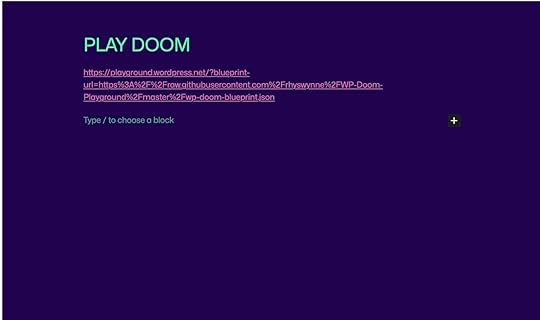
When readers click the link, it launches a new browser tab where DOOM runs inside WordPress Playground.
4. WP Sudoku Plus
Sudoku is a number puzzle game that requires players to complete a 9×9 square of numbers.
Using number clues, players must place the remaining missing numbers into the empty squares, ensuring that every row, column, and small box on the puzzle contains the numbers 1-9 exactly once.
Since Sudoku requires some focus, it could be used to celebrate finishing a long blog post or on an FAQ page for added interest. You could also use it alongside short-form audio content, like a song or podcast clip, to keep users engaged while they listen.
How to add Sudoku Plus to your WordPress siteWP Sudoku Plus is another plugin available through the WordPress Plugin Marketplace.
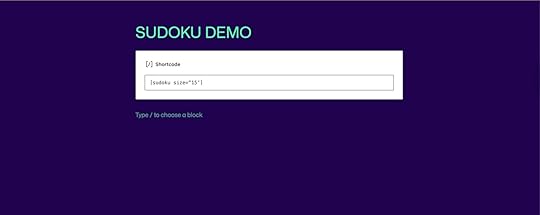
Once installed, you can add a puzzle to a page by using a Shortcode block with the shortcode [sudoku].
Sixteen is the default puzzle size, but you can adjust it to be bigger (up to 32) or smaller (as small as eight) on the page.
To change the size, expand the short code to [sudoku size=”(number between 8-32)”].
 5. Minesweeper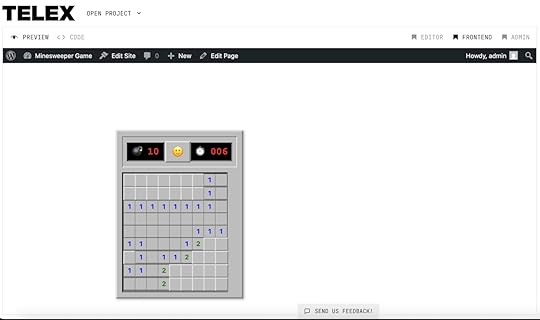
Minesweeper is a classic internet puzzle game from the 1990s. To win, players must click on all the free squares on the board without setting off a landmine.
Numbers next to landmine squares indicate how many mines touch that square on all sides. Using the numbers, you need to figure out which squares are safe to click.

While the rules are relatively straightforward, Minesweeper puzzles range from beginner to expert to suit a variety of player levels.
A casual player is expected to complete a beginner grid in around 3 minutes, which means that adding Minesweeper to your site could more than double the average time visitors spend on your site.
Similar to Sudoku, Minesweeper is a medium-engagement game: it requires users to think deeply, but it doesn’t demand uninterrupted focus. This makes it a good choice to use alongside audio content or as a fun breather between long content sections.
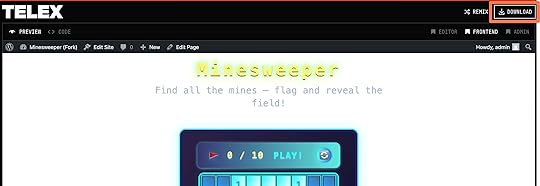
How to add Minesweeper to WordPress with TelexTelex AI is an Automattic experiment that generates interactive WordPress blocks from natural‑language prompts. You can find an AI-coded block that allows you to add Minesweeper to your site here.
Simply download the code using the Download button in the upper-right corner.
 Screenshot
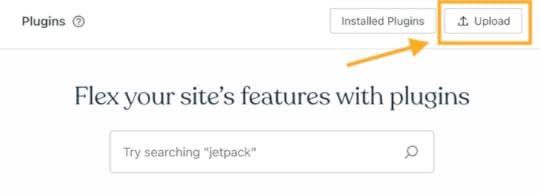
Then, visit your website’s dashboard and click on Plugins on the left side to install the plugin. Then, click the “Upload” button.
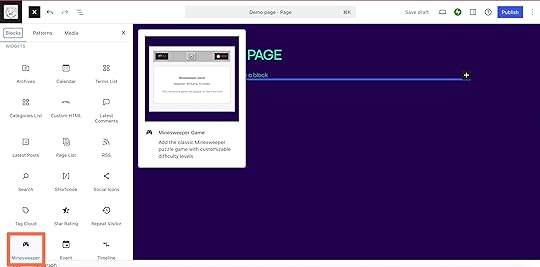
Because Telex blocks run inside WordPress itself, the Minesweeper game can then be embedded on a page just like any other block.
You can build other simple games in Telex, which we’ll dig into at the end of this article.
6. Cybersoldier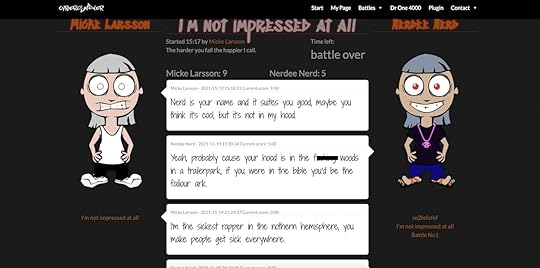
Live out your 8 Mile fantasies with Cybersoldier, a virtual rap battle.
With Cybersoldier, users can create accounts on your site, design a custom rapper Avatar, and battle with other registered players. Players will be alerted via email when someone starts a battle with them.
If you run a music site or a community of creative readers or writers, Cybersoldier can strengthen relationships between site visitors.
Since users need to return to your site to respond to battles, Cybersoldier also encourages repeat visits and ongoing engagement.
How to add Cybersoldier to your WordPress siteCybersoldier is another plugin-enabled game that you can install directly from the WordPress Plugin Marketplace.
Once activated, you’ll see a Cybersoldier settings page in your WordPress admin dashboard.
From the settings page, you can set some of the main rules around your battles, including how long each battle lasts and how long each diss can be.
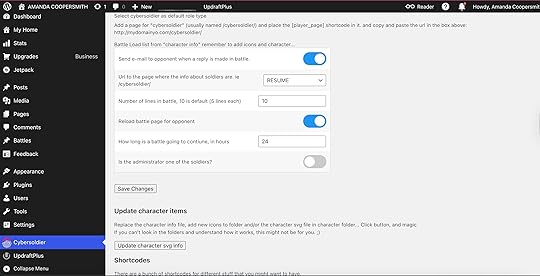 Screenshot
The page also contains directions for adding necessary shortcodes to your site, including one for adding a player’s page and a running Battle List.
7. Personal Dictionary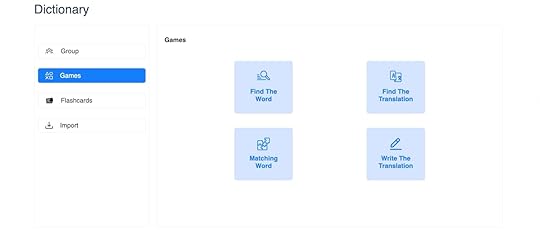 Screenshot
With Personal Dictionary, students can create digital flashcards, and educators can monitor student progress in real-time.
This plugin allows website users to create and organize personal vocabulary lists right on your site. Once a user has created a dictionary of at least four words, they can practice the words using the tool’s built-in games.
The first game, “Find the Word,” gives the word’s definition or translation with four word options. Users must select the correct word out of the four provided words.
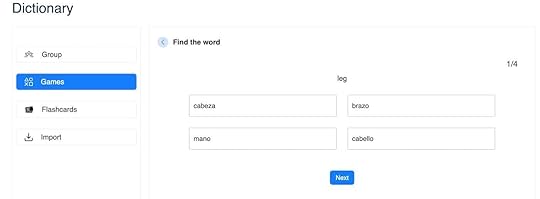 Screenshot
Students can also play “Find the Definition,” “Matching Word,” and “Write the Translation.”
Teachers, tutors, schools, and other learning professionals who have administrative access to WordPress can utilize this tool. On the backend, you can monitor students’ Personal Dictionary usage, including how many words have been saved, view student progress on games, and track leaderboards.
How to add Personal Dictionary to your WordPress sitePersonal Dictionary is available for installation in the WordPress Plugin Marketplace.
Once activated, you can add the plugin’s shortcode [ayspd_userpage] to a Shortcode block on any page. This will embed the tool into your site.
8. Scratch & Win Screenshot
Scratch and Win is a digital giveaway game that helps you capture visitor information and referrals.
With the plugin, you can set up your own giveaways, which will show up to users as a pop-up after they complete specific actions, such as scrolling down the page or clicking on a link.
Users can scratch to win in exchange for their email address, and can get additional scratch cards by referring friends or returning to the site on another day.
 Screenshot
Scratch and Win is best for sites looking to ramp up their marketing and lead-building efforts through email advertising. If you sell custom merch through a WooCommerce store or have branded partnership opportunities that involve product giveaways, Scratch and Win can help you build engagement and brand loyalty.
How to add Scratch and Win to your WordPress siteScratch and Win is available as a Free Plugin via the WordPress Plugin Marketplace.
Once activated, you will see a Scratch and Win page in your Admin Dashboard where you can configure key settings.
However, to launch and manage the plugin, you will need to create an account with the plugin’s creator brand, Appsmav, which has its own dashboard for scratch and win lead management.
How to add games to WordPressThere are several ways to install games on WordPress. Below, we’ll dig into a few ways to get started.
Install a pluginThe easiest way to install a game is by using a plugin.
You can find and install plugins from the WordPress Plugin Marketplace or by downloading a developer’s code file and installing it on the Plugin page with the Upload button.

Game installation and activation can vary, so be sure to read the installation information provided by the publisher.
Embed an external gameSome games aren’t available as plugins, but can be embedded into your site from an external site.
If the game provides a link from a supported WordPress provider, paste it into an Embed block, and WordPress will automatically convert it.
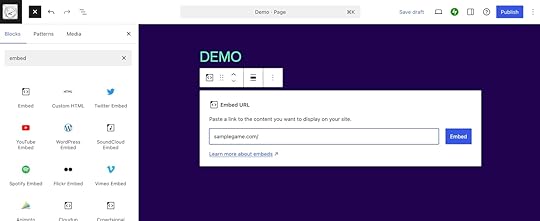 Screenshot
If the game offers an or embed, you need to paste that code into a Custom HTML block. Custom HTML blocks are available on WordPress.com’s Business plan and above.
Build a game with TelexIf you’re adventurous, you can try Automattic’s new tool Telex to build a custom game plugin using natural language instructions.
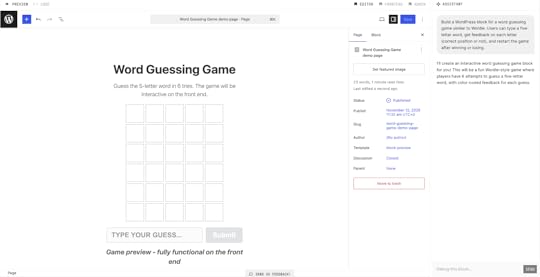
Once you’ve created and tested your game on Telex, you can download the plugin and install it on your site. You can also share a Telex preview link.
Link to a gameIf there’s no way to embed a particular game on your site, you can still encourage people to check it out on another website.
Simply use a link or a button to direct visitors to the game in another tab.
Level up your website with gamesOne of WordPress’s greatest assets is its flexibility and huge variety of developer-created plugins.
WordPress game plugins make it possible to turn a static webpage into a unique, engaging experience.
If you’re interested in adding games to your site, there’s more to explore. Check out the full WordPress games plugin library or cook up something new with Telex.
November 18, 2025
11 Common WordPress Myths vs. Reality
For years, many believed that WordPress was only for blogging: too complicated and too vulnerable to cyberattacks.
These misconceptions spread relentlessly like the viral Labubu dolls.
To debunk the most common WordPress myths, I’ll share real success stories backed by my decade of experience working with this platform.
By the end of this post, you’ll learn more about our platform’s actual capabilities and determine if it fits your needs.
TL;DR: 11 Common myths about WordPress, debunkedMythReality Myth #1 : WordPress is only for blogging.WordPress powers 43.2% of the web, including ecommerce stores, corporate sites, and government agencies. Myth #2 : WordPress is insecure.Most vulnerabilities stem from weak passwords and outdated plugins. The core WordPress software is regularly audited, keeping you ahead of cyber attacks. Myth #3 : WordPress is low quality because it’s free.WordPress being free doesn’t mean it’s low quality — it’s open-source software built and continuously improved by thousands of expert developers worldwide.Myth #4: WordPress.com is expensive.WordPress.com provides managed WordPress hosting with built-in security, backups, support, and performance optimization. The WordPress software itself is free — you’re paying for the services essential for keeping your site fast, secure, and reliable. Myth #5 : WordPress sites are always slow.Properly configured sites load quickly, with 60–70% TTFB (Time to First Byte) improvements possible. Myth #6 : All WordPress sites look the same.The WordPress.com AI website builder and Site Editor, 1,000+ customizable themes and plugins, and other customization features enable unique designs. Myth #7 : WordPress isn’t scalable.WordPress powers everything from personal blogs to growing websites, thanks to an advanced infrastructure that handles high traffic smoothly. Myth #8 : You can’t use third-party themes or plugins on WordPress.com.All paid plans support third-party plugins; Business and higher plans offer granular customization of layouts, styles, and more via custom themes. Myth #9 : WordPress is complicated.Anyone can learn WordPress. You can easily build functional sites using the WordPress.com AI Website Builder or Site Editor — no coding required. Myth #10 : WordPress.com has limited customization.WordPress.com offers extensive customization, with access to plugins, themes, and AI tools. On Business and higher plans, you can take full control — customizing layouts, navigation, and code — while still benefiting from managed hosting. Myth #11 : WordPress.com owns your content.You keep full ownership of your content, and you can migrate your site whenever you want.Now that we’ve got the TL;DR out of the way, let’s debunk each myth in detail.
Myth #1: WordPress is only for bloggingReality: WordPress powers ecommerce stores, corporate websites, portfolios, magazines, government agencies, and more.
Originally known as a blogging platform, WordPress now runs over 43% of the web, including Fortune 500, government agencies, ecommerce experiences, and national media sites.
With robust design tools, AI features, and thousands of themes and plugins, you can create virtually any type of website.
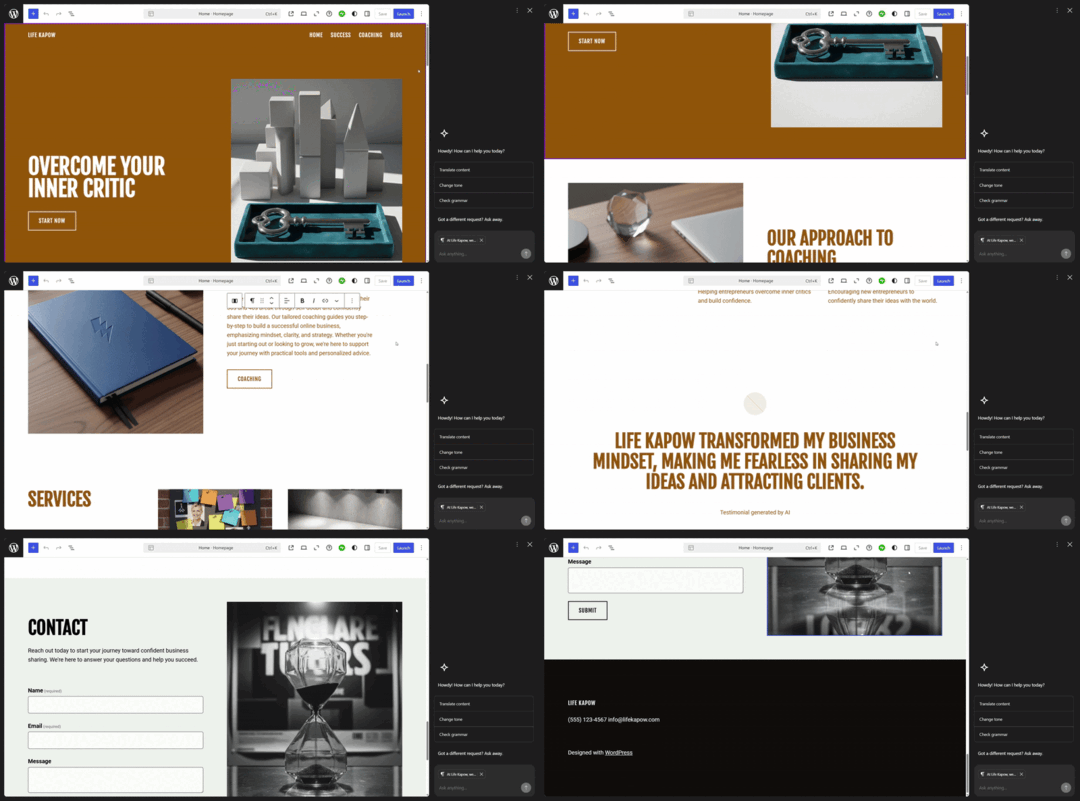
For example, using the WordPress.com AI website builder, I generated a full business coaching site in minutes — complete with an aesthetic header image, clear copy, and a professional layout:
Bigger companies also benefit from using WordPress, as our features span beyond web building and hosting.
In a notable success story, Endoh Collaborative partnered with WordPress.com to access our agency services, like client management tools and a partner directory referral program.
WordPress.com supports your needs at every stage, with features for whatever website you want to create — be it an ecommerce store, small business, or corporate initiative. All paid plans offer unlimited bandwidth, expert support, managed hosting, and access to plugins and themes.
Launch your site on WordPress.com Myth #2: WordPress is not secureReality: Most cyber attacks are caused by weak passwords or outdated plugins. WordPress’s core is audited by thousands of developers, keeping you one step ahead of attacks. For peace of mind, use a managed WordPress host like WordPress.com — site updates, backups, and security patches are handled automatically.
Because WordPress is open source, some folks assume it’s vulnerable to security threats.
As a WordPress user for 10+ years, my websites have remained secure through intentional security practices. For example, WordPress.com updates my site to the latest, most secure version and takes care of plugin safety and performance, so I don’t need to monitor it constantly.
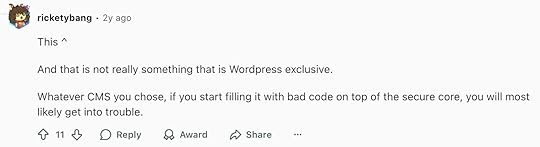
The reality is: even the most robust CMS becomes vulnerable when burdened with inefficient plugins, according to experienced developers.
Note the Reddit comments below where they talk about how poorly coded plugins slow down sites and create security gaps:
Safeguard your website on WordPress.com today. Our managed hosting plans offer complete security through SSL certificates, advanced firewalls, brute force prevention, encryption, and DDoS protection.
Myth #3: WordPress is low quality because it’s freeReality: WordPress is free for a reason — not because it’s low quality, but because it’s open-source software.
WordPress is built and maintained by thousands of developers and designers around the world who contribute their expertise to keep improving it.
This community-driven model is what makes WordPress so powerful.
Every update, feature, and security enhancement is peer-reviewed and tested before release.
WordPress.com adds managed hosting, security, and performance features to the mix, making it easier to run a fast, reliable site without extra effort.
Plus, our community runs hundreds of WordPress events worldwide.
For example, WordPress.com sponsored WordCamp US, a popular WordPress conference, this year. At WordCamp, thousands of WordPress beginners and experts come together to exchange knowledge on the open source software.
This collaborative culture moves WordPress further. It never stagnates.
Myth #4: WordPress.com is expensiveReality: The WordPress software itself is free, but building and running a professional website always involves essential costs like hosting, a custom domain, and maintenance.
With WordPress.com, those costs are bundled into simple, transparent plans that include managed hosting, security, backups, and expert support.
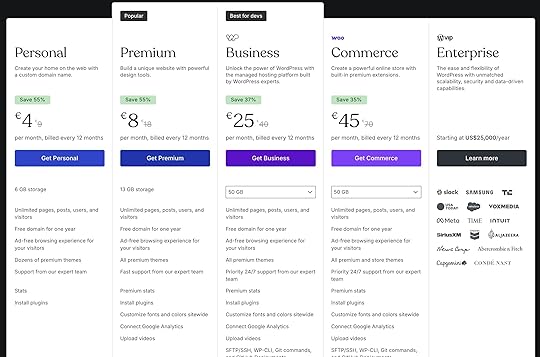
You also get access to features like the AI website builder, premium themes, plugins, and 24/7 support.
The best part? It’s also possible to start for free and upgrade when you’re ready to launch your website.
Compared to juggling separate services on self-hosted setups, WordPress.com often ends up being both affordable and easy to manage.
Myth #5: WordPress sites are always slowReality: WordPress sites can be fast. Your site speed depends on your hosting, theme, and plugin quality.
WordPress sites load quickly when configured correctly.
On WordPress.com, websites include built-in caching to reduce server load. Combined with our optimized WordPress.com themes, your site stays fast without extra setup.
For example, when LUBUS migrated a client’s site to WordPress.com, it observed a 60% to 70% improvement in TTFB (Time to First Byte), indicating faster page loads and reduced visitor bounce rates.
Tip: TTFB measures how long it takes a visitor’s browser to receive the first byte of data from the server. A low TTFB score indicates faster page loads and better user experience. According to Google, a good TTFB score is 0.8 seconds or less.
We credit our full-stack infrastructure for LUBUS’s massive TTFB improvements.
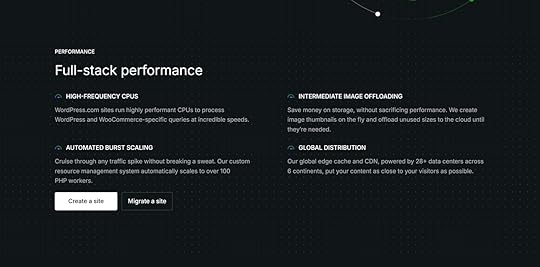
WordPress.com’s Global Edge Caching uses 28+ data centers across six continents, routing your site content from servers closest to each visitor. This ensures your site loads fast, no matter where they’re located.
Our infrastructure also automatically resizes images via our Site Accelerator CDN (Content Delivery Network). This helps pages load quickly, even during traffic spikes.
Myth #6: All WordPress sites look the sameReality: You can create unique websites and customize them using the WordPress.com AI website builder, Site Editor, and thousands of plugins and themes. You can also code or upload custom themes if you’re on the Business and higher plans.
Whether you want to pick from 1,000+ professionally designed WordPress themes, enhance your site with plugins, or create something from scratch using AI prompts — customization is simple.
For example, when I built a dog shelter site with the AI website builder, I started by giving it a short brief: the organization’s name, goal, and address.
The tool generated the first draft in seconds — a clean scarlet-red design with a Beagle in the hero image, which fit the “senior dogs” mission of my website perfectly.
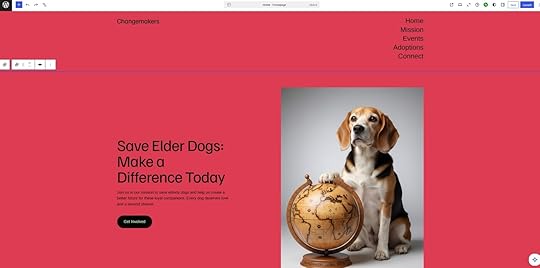
From there, I customized.
I asked the AI to swap the Beagle for a pack of six dogs playing in a garden to shift the mood to something warmer and more energetic.
I also had it rewrite the homepage copy in a friendly, second-person tone to nudge visitors to get involved.
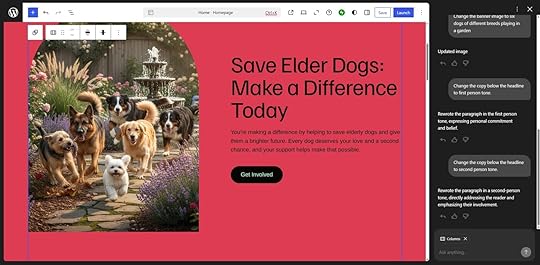
In a few minutes, I went from a solid AI draft to a site that felt uniquely mine.
Myth #7: WordPress isn’t scalableReality: WordPress powers everything from personal blogs to enterprise-level sites, supported by infrastructure that handles high traffic with ease. On WordPress.com, you also get robust managed hosting that scales automatically, so your site stays fast and reliable as it grows.
WordPress’s performance architecture makes it easy to scale without downtime — especially when you’re using a managed platform like WordPress.com.
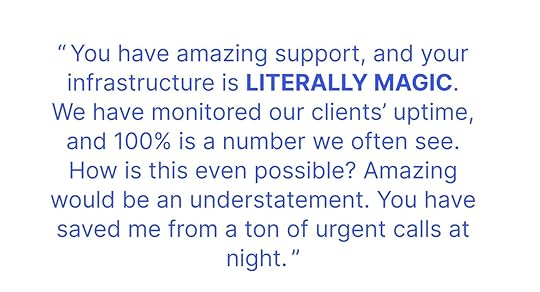
For example, after Jelly Pixel Studio moved its client sites to WordPress.com, the agency saw improved stability and faster load times. Even during traffic spikes, uptime remained at 100%.
As the founder put it, WordPress.com’s infrastructure felt “literally magic,” saving him from countless emergency calls about performance issues.
Two core features help keep WordPress.com sites consistently fast and stable:
Global Edge Caching: Delivers content from data centers closest to your visitors.Site Accelerator CDN: Offloads your image and static files to reduce server load and improve overall performance.Myth #8: You can’t use third-party themes or plugins on WordPress.comReality: WordPress.com Personal and Premium plans now support third-party plugins, alongside all other paid plans. Business, Commerce, and Enterprise plans also let you upload and use third-party themes for full design flexibility.
You can extend your site with any plugin from the WordPress ecosystem, whether you’re adding advanced SEO tools, contact forms, or custom integrations.
Since the core platform includes essentials like security, backups, and performance optimization, you can safely experiment without worrying about maintenance or compatibility issues.
In short, WordPress.com gives you full creative freedom — with the added benefits of managed hosting, automatic updates, and expert support.
Myth #9: WordPress is complicatedReality: WordPress can feel unfamiliar at first, but anyone can learn how to use it. The platform has a learning curve — like any powerful tool — yet there’s a huge library of tutorials, courses, and community support to help you get comfortable quickly. AI tools like the AI website builder also speed up the process.
You don’t need to be a designer or developer to build a professional website with WordPress.
Once you learn the basics, the Site Editor lets you add and move elements — like headings, buttons, payment blocks, or images — with just a few clicks.
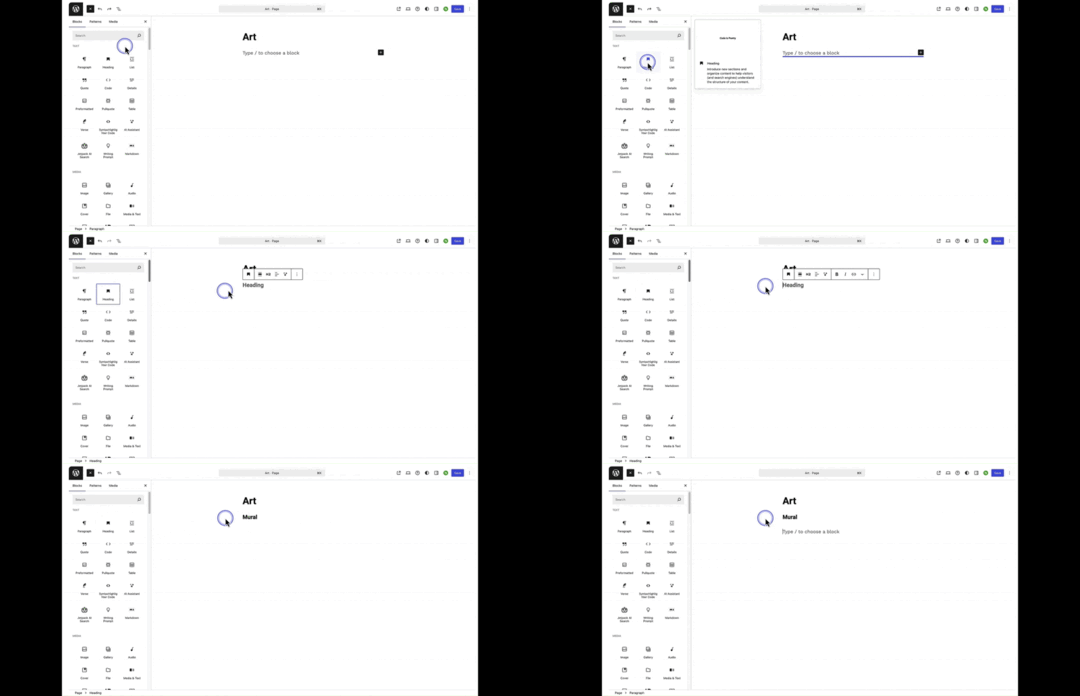
If you prefer extra help, the AI website builder can generate your first site draft in minutes.
For example, remember the dog shelter website I built?
All I needed to do was use text prompts to create the drafts and add visual changes.

With a bit of practice — and access to a supportive community — most WordPress users quickly go from overwhelmed to confident site owners.
Tip: If you need help, tap into our courses, guides, AI assistant, or expert support (for paid plan users of WordPress.com). Our forums, actively supported by WordPress.com staff and experienced users, are also available for all users.
Myth #10: WordPress.com only suits beginnersReality: While WordPress.com is beginner-friendly, it also offers advanced tools for experienced users. All paid WordPress.com plans support third-party plugins, while Business, Commerce, and Enterprise plans also let you upload fully custom plugins and themes and provide access to developer tools.
Many users see WordPress.com as a “lite” version of WordPress and assume it offers limited customization.
Some even claim that WordPress.com locks you into set templates with no plugin access.
The reality is more nuanced:
All WordPress.com paid plans allow third-party plugins, helping you expand your website’s capabilities in various ways.Business, Commerce, and Enterprise plans support fully custom plugins and themes for deeper control.Premium plans and above include custom CSS, so you can adjust layout, typography, spacing, interactions, and more.Business, Commerce, and Enterprise add developer tools like SFTP/SSH, WP-CLI, Git commands, and GitHub deployments for streamlined, professional workflows.Tip: All WordPress.com paid plans include automatic updates, security, analytics, and plugins (e.g., Jetpack Social for social sharing, Akismet for spam protection).
Myth #11: WordPress.com owns your content and locks you in permanentlyReality: Only you control your WordPress content, whether it’s your posts, pages, media, or followers.
You own all content published on your WordPress site. Automattic doesn’t own your data.
In fact, we explicitly mention this in our Terms of Service: “We don’t own your content, and you retain all ownership rights you have in the content you post to your website.”
You can manage your content however you want: delete it, monetize it, sell premium content using the Paid Content block, accept tips through the Donations Form block — or migrate to another host at any time.
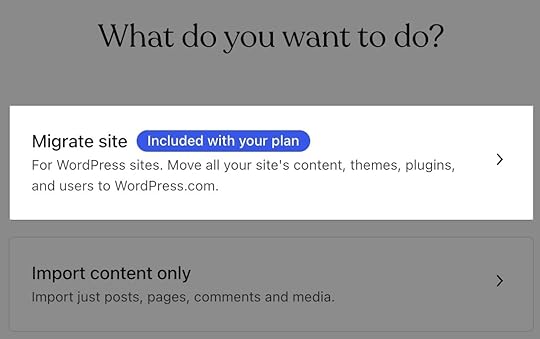 These WordPress myths are just that…myths
Now that this post has debunked the myths, you can confidently use WordPress for your website.
Hosting it on WordPress.com is also the best option if you want unlimited bandwidth and “done for you” technical maintenance.
Our pricing scales with your growth. Start free, then upgrade when you need a professional site with advanced features.
All paid plans offer unlimited bandwidth and visits — there’s no traffic slowdown or surprise fees in high-traffic events. Plus, you get a free domain for one year, fast support, 50,000+ plugins, and more.
Launch your site on WordPress.comNovember 17, 2025
Black Friday 2025: Get Your Website Built for You — Free with WordPress.com Business
This Black Friday (Nov 17 – Dec 1, 2025), get your website built for you — free — when you purchase a new annual WordPress.com Business plan. Plus, take 10% off.
That’s over $499 in professional design included at no cost, along with savings on our most powerful plan.
Claim your free site build Why a website matters more than everA professional website does more than put your name online. It builds trust, helps people find you, and sets you up for growth.
Unlike social media accounts or third-party platforms, a WordPress.com site is fully yours: you own your content, control your design, and decide how your audience engages with you.
Whether you’re starting a side project, promoting your business, or sharing your passion, launching a polished website now means you can step into 2026 with momentum — on a platform that you control.
What you’ll get this Black FridayHere’s what’s waiting for you:
A free, professional five-page site created for you by our team10% off your Business plan purchase.
A free custom domain for the first year.
Access to premium themes, plugins, and advanced tools like SEO, analytics, and marketing integrations.Why choose the WordPress.com Business plan
The WordPress.com Business plan is built for growth.
You get the flexibility to scale with ecommerce, memberships, and integrations as your goals expand, all on a fast, secure hosting platform.
And whenever you need help, our Happiness Engineers are available worldwide to support you.
How it worksGetting started is simple:
Purchase a Business plan between November 17 and December 1, 2025. 10% will be automatically applied when you purchase via the Black Friday offer page.Tell us your website goals, and we’ll request the key information we need to create your site.Our design team builds your site.
You launch before the year ends—without the stress of starting from scratch.
Don’t miss out
This Black Friday promotion is only available for a short time — November 17 through December 1, 2025.
Claim your free site build and start the new year with a website that’s ready to grow.
Claim your free site build + 10% off BusinessFrequently Asked QuestionsWho is eligible for this offer?This promotion is available only to new WordPress.com Business plan customers in the United States, the United Kingdom, and Canada.
How does it work?After completing your purchase of a yearly WordPress.com Business plan (with 10% off!), you’ll receive an invitation to share your project details with our website design team. We’ll discuss your goals and guide you on how to submit your content using a simple form. From there, our designers will create a custom layout and design based on the information you provide.
What kind of design will I get?Your website will be built by our experienced design team, which has created sites for thousands of WordPress.com customers.
We use the latest WordPress.com tools and blocks to craft a professional, modern layout — without relying on third-party themes or plugins.
While we don’t build from mockups or external websites, we’re happy to incorporate your preferred colors or fonts to ensure the design reflects your brand.
Once our team delivers the site to you, you’ll be able to add and customize third-party themes or plugins within your Business plan.
Can any website project qualify for the free build?Our team reviews each project to make sure it fits within the scope of our service. We focus on websites that can be built using WordPress.com’s built-in tools. If a project falls outside of that scope — for example, if it requires advanced custom development or third-party integrations — we’ll let you know and recommend alternative options.
What if I need more than 5 pages?Additional pages are available for $69 each. Just let us know how many you need, and we’ll include them in your project.
Do I own my website after the work is completed?Yes. Once your site is finished, it’s completely yours. You’ll be able to edit everything directly from your WordPress Dashboard. The design is built using features included with the Business plan, so keeping that plan ensures your site looks and functions exactly as designed.
Can I use this discount to renew an existing plan?No. The offer is limited to new annual Business plan purchases between November 17 and December 1, 2025.
What is the refund policy?All new WordPress.com plans include our standard 14-day refund window. If you decide the Business plan isn’t right for you, you can request a refund within 14 days of purchase.
Terms and conditionsWordPress.com is offering a free, 5-page website build and 10% off with the purchase of a new annual Business plan subscription for users in the US, UK, and Canada. Discount applies to the first payment of an annual plan and does not apply to future recurring payments. Not all website projects will be a fit for our Design Services team. Which projects are a fit will be at the discretion of the Design Services team. This promotion runs from Nov. 17, 2025 to Dec. 1, 2025 and may not be applied to previous purchases, renewals, upgrades of existing subscriptions, or combined with any other offer. We may modify or terminate this promotion at any time without prior notice.
November 13, 2025
12 Cool AI-Powered WordPress Blocks Made with Telex
Did you know you can create custom WordPress blocks with AI — just by describing what you want in plain language?
With Telex, a free, browser-based tool from Automattic, you can type out your idea for a block and watch it come to life right in your browser.
You can then interact with the block, refine it with extra instructions, and download it as a plugin for use on your own WordPress site.
To show you what’s possible, this article lists 12 cool WordPress blocks made with Telex. Each one is accessible via a shared link, so you can explore, remix, and add them to your site.
1. Minesweeper
The Minesweeper is an interactive AI-generated WordPress block that lets you play the classic Minesweeper game on your site.
You can interact with it right inside the post editor or after publishing, whether it’s on a post, page, or any other block area.
Block settings let you adjust the grid’s rows, columns, and mine count.
The puzzle resets automatically on each page load or refresh, and it can be added anywhere blocks are supported.
How to use it on your WordPress siteThe Minesweeper block adds a fun, interactive touch to your site and keeps visitors coming back for more.
You can publish it on any post or page to engage your audience — or simply drop it into the editor and enjoy a quick round when you need a break from writing.
2. Rainbow Confetti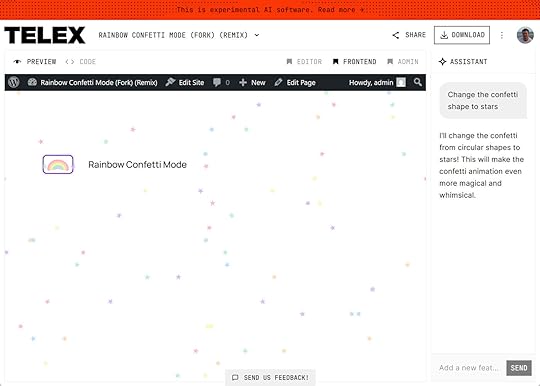
The Rainbow Confetti block adds a button to your site that toggles a fun, colorful animation that overlays the entire site.
Its settings let you control the size of the confetti and the speed at which it falls.
You can also switch between random and steady movement styles.
How to use it on your WordPress siteThe interactive Rainbow Confetti block adds a fun, eye-catching touch to your site. It’s fully responsive and works seamlessly across all devices.
You can add it to individual posts and pages or even include it in your header template part so it’s always available.
For example, place it at the end of long articles or tutorials so visitors get a playful visual reward for reaching the finish line.
Since these blocks are easy to edit, feel free to remix this one — adjust the confetti’s shape, colors, or animation to match your style.
3. Personality Quiz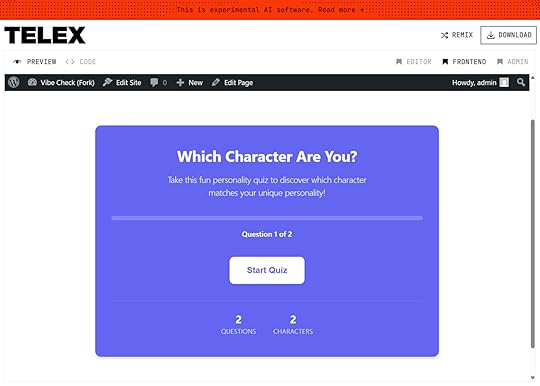
The Personality Quiz block lets you add an engaging personality quiz to your WordPress site.
Create your own questions and answers that assign your visitors a personality type or character.
Some of the quizzes you could build include “Which superhero are you,” “What’s your spirit animal,” and “Which TV show character are you?”
You create the cast of characters or personalities and then enter a series of questions and answers. Each question has multiple answers, and each answer points to one of the characters or personality types.
The results are nicely presented and easy to share on social media. Users can retake the quiz with the touch of a button.
How to use it on your WordPress siteThe Personality Quiz block makes a great addition to fan sites, entertainment and sports blogs, and any site where characters and personalities are relevant.
This Telex block is perfect if you’re looking for an easy way to add fun, shareable, and engaging interactive content to your site.
4. Accordion Block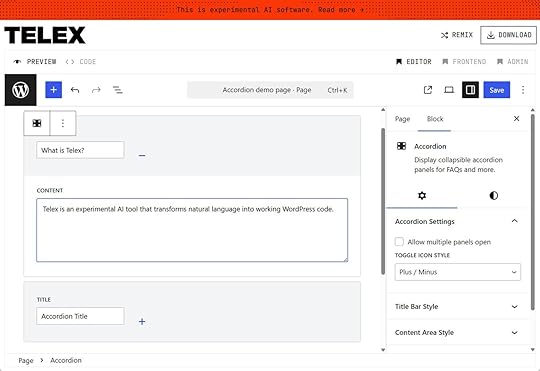
The Accordion Telex block helps you add collapsible accordion panels to your content.
These accordions are perfect for FAQs and other question-and-answer-style content.
Multiple accordions can be added to a single post if necessary. Each accordion can have as many panels as needed, and you can add content to the panels through the WordPress editor.
You can also customize the accordions’ colors, font sizes, and border styles through the block settings.
How to use it on your WordPress siteThe block works well for any scenario where you want to let visitors control how and when content is displayed, prevent them from being overwhelmed by exposure to too much information, and avoid taking up too much space on a page.
For example, you can use it to create an FAQ or to hide spoilers until visitors choose to see them.
5. Scratcher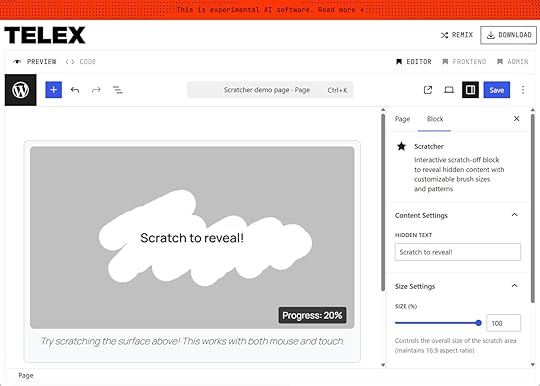
The Scratcher Telex block lets you hide text behind a scratchable coating. It supports mouse and touch scratching.
The size of the scratch area, the coating color, and the brush size and shape can be customized. You can also modify the percentage of the coating that must be removed before the content is revealed.
How to use it on your WordPress siteAdd an interactive twist to your site with this scratch-off block. It’s perfect for hiding content such as spoilers, special offers, or quiz answers.
6. Pokémon Fun Facts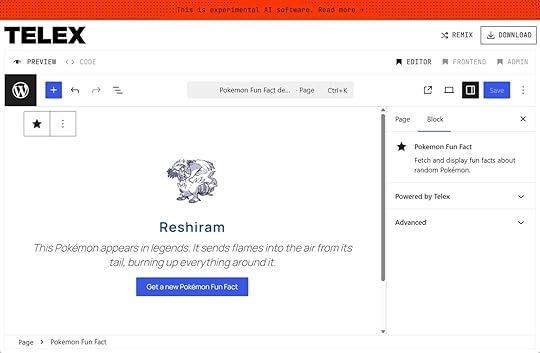
The Pokémon Fun Facts block adds a button to your site that displays a fun fact about a random Pokémon when clicked.
The block fetches a Pokémon’s name, sprite (its small character image), and Pokédex entry (the short descriptive text shown in the in-game Pokédex) from the PokéAPI each time someone presses the button.
You can use it right away — no API key required.
How to use it on your WordPress siteIf your audience would enjoy quick access to random Pokémon facts, this block is for you.
The Pokémon Fun Facts block can be a playful addition to your content or the main highlight of your site — add it wherever you want a bit of extra fun.
7. One More Bite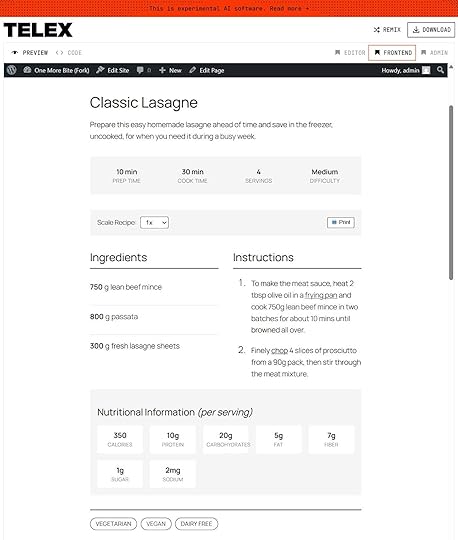
The One More Bite block lets you conveniently publish recipes on your WordPress site.
It adds a form to the editor with fields covering all of the recipe publishing essentials.
Published recipes include Google Recipe structured data for enhanced search visibility and displaying rich snippets in the search results.
The recipes are all nicely presented and easy to read.
How to use it on your WordPress siteThe One More Bite block is perfect for food blogs and for anyone who occasionally shares recipes on their site.
8. Space Dots
The Space Dots block adds floating elements to your site that respond to cursor movement, mouse clicks, and touchscreen taps.
The block settings let you control the number of dots, the height of the block, and the dots’ speed.
How to use it on your WordPress siteYou can add this block anywhere on your site — in posts, pages, or template parts.
It serves as both a subtle decorative element and a fun, interactive way for visitors to relieve stress.
9. Weather Forecaster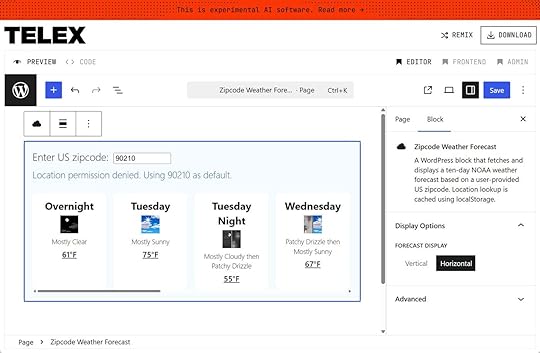
The Weather Forecaster block fetches and displays a five-day NOAA weather forecast based on a US zip code entered by the user.
It retrieves the forecast using free APIs (Zippopotam.us and weather.gov).
The block then presents the weather information in an accessible, mobile-friendly layout. Visitors can see a day-and-night forecast for today and the next four days.
How to use it on your WordPress siteAny website that features services or activities affected by the weather can benefit from adding this weather forecast block.
For example, sites for local attractions, outdoor events, or travel experiences could use a five-day forecast to help visitors plan their visit or make informed booking decisions.
10. Scroll Indicator
The Scroll Indicator block adds a small animation that invites visitors to scroll down.
When clicked or tapped, it automatically moves the page, offering an easy, interactive way to explore your site.
The block’s animated icon features a smooth bounce effect to gently catch your visitors’ attention without being too distracting.
You can change the icon’s color, size, and text, and set the block to be hidden once a user starts scrolling.
How to use it on your WordPress siteAdd this animated indicator to longer pieces of content to give readers another way to navigate your site.
11. Orbit
The Orbit block lets you add animated, circular text to your site.
Add it to a post, enter your text in the block settings sidebar, and watch it rotate around the circle.
You can adjust the rotation speed and control the spacing between the start and end of the text loop.
How to use it on your WordPress siteThe Orbit block is ideal for highlighting key pieces of text in an article or adding animated headings to your posts.
12. Chaos Rolled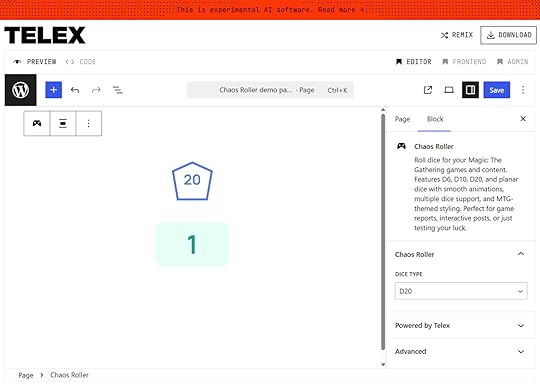
The Chaos Rolled block adds an animated dice roll to your WordPress site.
Visitors can click the dice to generate a random result with a smooth animation providing visual feedback.
In the block settings sidebar, you can choose from a range of dice types, from D4 to D20. You can also add multiple dice to simulate higher rolls — for example, two D10 dice to create a D100 roll.
How to use it on your WordPress siteAny website that would benefit from random number generation could use this block.
For example, an educational site could make lessons more engaging by generating random numbers for math problems or selecting tasks.
How to get started with Telex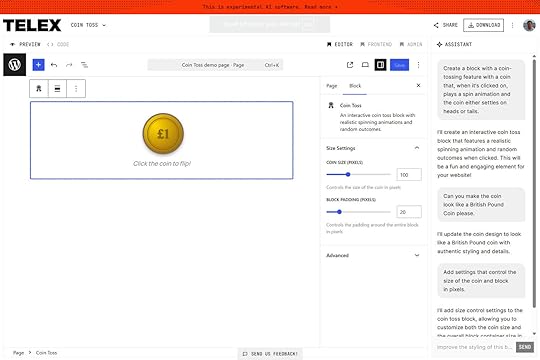
Creating your first block with Telex is as simple as visiting the website and entering a description.
To get started, follow these steps:
Come up with an idea: Your block could serve a practical purpose or simply add a fun, creative touch to your site. Go to the Telex website : Sign in with your WordPress.com account or create a new one.Enter your prompt: Describe the block using natural language. Simple prompts work well, but adding more context helps Telex generate better results. You can easily modify the generated block by providing additional instructions.Click “Build:” Telex will generate a working block in the browser.Iterate and refine: Try out the block and use follow-up prompts to tweak it.Download or share: Once you’re happy with the result, click “Download” to get the plugin zip file that you can install on your WordPress site or choose “Share” to copy a preview link that you can use to show others what you’ve created.You can return to the blocks you create at any time.
Blocks are automatically saved to your WordPress.com account and can be accessed from the Telex page if you need to make changes.
For more information, check out this post on creating AI-generated WordPress blocks with Telex.
Try Telex for YourselfReady to build your first AI-generated WordPress block?
Creating custom blocks is faster and easier than ever with Telex.
Whether you want to bring a brand-new idea to life or remix one of the showcased blocks, Telex makes block creation fun and straightforward.
Visit Telex to get started, then share your creations or feedback. We’d love to see what you build.
November 12, 2025
8 Must-Try AI Tools for Web Development (Build Faster & Smarter)
Artificial intelligence excels at automating repetitive tasks and streamlining tedious workflows — and web development has plenty of those.
That’s why using AI tools in your web projects can save you a ton of time and effort.
Still, with so many options out there, which ones are actually worth trying? That’s exactly what we’ll cover in this post.
Below, we’ll explore eight AI-powered web development tools that genuinely stand out.
For each, you’ll see what it does, why it’s useful, and how it can improve your workflow — plus a few quick-start resources to help you put them to work right away.
1. Studio AssistantThe Studio Assistant is our own AI chatbot integrated into WordPress.com’s free local development desktop app, WordPress Studio.
It saves time by letting you do more from a single interface using natural language — no need to browse your site or file system, or learn shell commands.
You can find it under the Assistant tab.
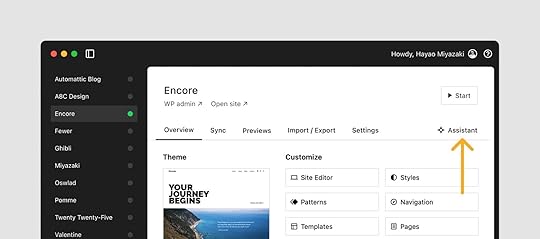
To access the Assistant, you must be logged into your WordPress.com account.
Each user is allowed 200 prompts per month across all of their Studio sites.

You can talk to the Studio Assistant in any language, and it will perform various tasks to help you configure new sites and manage your existing local websites. For example:
Answer questions about WordPress developmentGive plugin and theme recommendationsCreate ready-to-copy contentWrite PHP, JavaScript, and CSSDisable or update pluginsUpgrade your local site’s WordPress version (even to beta or RC versions)Open site files directly from the chat interfaceRun WP-CLI commandsIf you want to add custom code, the Studio Assistant writes it for you and links to the file where you can add it. The chatbot understands your site’s context (themes, plugins, etc.) and connects to the WordPress.com knowledge base and infrastructure to tailor responses to your setup.
In short, it helps you focus on your goals and ideas instead of clicking around your site.
To learn more, read the documentation. We also have a detailed blog post on the Studio Assistant, and you can download and install WordPress Studio for free here.
PricingThe Studio Assistant is completely free to use within the WordPress Studio tool. You’ll need to log into a WordPress.com account — free or paid — to access it.
2. CursorCursor is an AI code editor that speeds up your workflow by predicting what you’re going to write next, even across multiple lines and files.
You can simply accept its proposals by hitting the tab button.
In addition, Cursor has an autocorrect function, which means you don’t have to type every colon or apostrophe. The editor fills them in for you.
Another feature is agent mode, which can write and edit code from natural language prompts.
The tool automatically takes your existing codebase into account when creating markup, but you can also provide an instruction file and manually reference files, functions, images, documentation, or the web.
Cursor keeps you in the loop with what it’s working on. You can ask it questions about the code it creates, request revisions, and accept the tool’s output with one click.
Besides, it can run terminal commands and detect and fix lint errors automatically to speed up debugging.
There’s an additional paid feature called Bugbot AI code review, which catches bugs, security issues, and beyond.
This AI web development tool is a real time-saver for anyone who writes a lot of custom code. While not WordPress-specific by default, Cursor lets you set rules — for example, to follow WordPress coding standards or use a specific PHP version.
You can also find and adapt community-made rules in the Cursor Directory.
Check Nick Diego’s detailed video for how to use Cursor for WordPress development with Studio below:
Use the documentation to get started.
PricingCursor has a free plan with limited features.
Paid plans start at $20/month for individuals and $40/month per user for teams (20% off when you go for a yearly plan).
3. PerplexityPerplexity is an AI‑powered “answer engine” or conversational search tool.
It combines real‑time web access with large language models to generate natural‑language answers and cites its sources.
This makes it really useful for research, unlike static LLMs that may rely on outdated training data.
For example, it helps you quickly find up-to-date information on APIs, frameworks, or error messages through context-aware conversations — much faster than juggling multiple browser tabs. It’s especially useful for troubleshooting, debugging, and discovering additional resources.
Beyond that, Perplexity can do everything you’d expect from an LLM:
Brainstorm ideasCreate contentWrite SEO titles and meta descriptionsGenerate or refine code snippetsDebug and explain code, give feedbackAct as a knowledge basePaid users also have access to Perplexity Labs, an AI-powered productivity suite aiming to function as a virtual business or technical team.
It can handle a range of tasks, including data analysis and visualization, content generation, code writing and execution, and building interactive elements.
Overall, Perplexity is better for information gathering and big-picture planning for your website and business than coding.
It’s useful for generating quick code snippets, but since it lacks awareness of your site’s context, it’s less effective as a full development assistant compared to other tools on this list.
Learn Prompting has a great beginner tutorial for Perplexity, and you can also use the official documentation.
PricingPerplexity is free to use; its Pro pricing is $20/month (less if you buy an annual subscription).
4. OpenAI CodexOpenAI Codex is an agent running an OpenAI model optimized for software engineering that integrates with your GitHub repository.
It acts as a “virtual coworker” that you can assign routine work to — e.g., to write code, fix bugs, answer questions about your codebase, run linters and tests, and propose pull requests.
OpenAI Codex exists in two forms:
A cloud-based version accessible via the ChatGPT interface.A local terminal tool called Codex CLI that’s open source and installable via npm.You can access the cloud version from the sidebar of your ChatGPT account.
Once connected to your GitHub account and repository, simply write a new prompt and click on Code to start a coding task or click on Ask to ask the tool questions.
Codex allows multimodal input in the form of text, screenshots, or diagrams to clarify what you want it to do, and you can also provide guidelines in a file.
When it completes a task, the tool shows you exactly what it did so you can review, request additional changes, or open a pull request to merge the changes.
You can find three practical use cases in this tutorial on DataCamp. In addition, check the documentation and, for Codex CLI, the official GitHub repository.
PricingCodex is available through ChatGPT’s paid plans, starting at about $25/month for Plus, $250/month for Pro, and $37 per user/month for Business.
5. Claude CodeSimilar to our last entry, Claude Code is an agentic coding tool that runs in your terminal. It understands your codebase, and you can prompt it to perform routine tasks, explain code, and manage Git workflows via natural language commands.
Claude Code also integrates with GitHub, GitLab, IDEs like VSCode and JetBrains, as well as external tools like Slack and Jira.
Here’s what it can do:
Build features: Tell the agent what you want to create, and it will write the code for you, including multi-file edits and refactors.Debugging: Share an error message or describe a bug. Claude Code will analyze your codebase, suggest fixes, and implement them automatically after approval. It can also manage Git workflows like commits, branches, and merge conflicts.Onboarding: The AI tool can map the structure of your codebase, explain dependencies, and highlight relevant files for new contributors. It also answers codebase questions and can even pull in context from external sources.Automate testing and code review: Automatically generate unit tests, pull request summaries, and receive code review comments. In addition, Claude Code can help translate functionality across languages and frameworks.Provide documentation: Generate or refine comments, notes, and module overviews to keep your codebase well-documented.Claude Code is designed for developers of all levels who want to speed up their workflow and spend less time on repetitive tasks.
WordPress developers, for example, can use it to generate plugins or themes from simple prompts, debug issues like plugin conflicts or database errors, improve documentation, migrate legacy code to newer WordPress standards, and more.
Check out this tutorial to get started:
PricingPlans start at $17/month for an annual individual subscription. Get started with the official documentation, tutorials, and learn how the Anthropic team uses Claude Code.
6. GitHub CopilotGitHub Copilot is an AI-powered coding assistant developed by GitHub and OpenAI, which supports a wide range of languages and frameworks.
It integrates primarily into popular IDEs like VS Code, Visual Studio, XCode, and JetBrains IDEs, as well as your CLI.
There, it provides real-time, context-aware code suggestions and completions based on natural language prompts and your existing code context.
Copilot also includes a chat interface that helps with coding questions and debugging. It’s available directly on GitHub, as a command-line tool, and in the GitHub mobile app.
As a (WordPress) web developer, here’s what you can use this AI tool for:
Make changes across multiple files from a single prompt (Visual Studio Code, Visual Studio, and JetBrains IDEs only)Write PHP, JavaScript, CSS, and REST API codeGet suggestions and explanations for command-line commandsHave Copilot review your pull requestsIn short, GitHub Copilot automates development tasks while remaining context-aware and adapting to your coding style.
It’s like a virtual team member inside your favorite IDE. You can adapt its responses by providing custom instructions.
The documentation has everything you need, and there are separate docs for using it in VS Code.
PricingCopilot comes with a limited free plan (50 agent mode or chat requests and 2,000 code completions per month).
Paid plans begin at $10/month (two months free if you pay annually) and include a 30-day free trial.
7. TelexTelex is an experimental tool from the Automattic AI team that lets you build WordPress blocks. It makes the whole process easier by using natural-language prompts.
It is powered by WordPress Playground, meaning Telex works online in your browser, so there’s no need to install anything to use it.
After logging in with a WordPress.com account, simply describe the block you are trying to build.
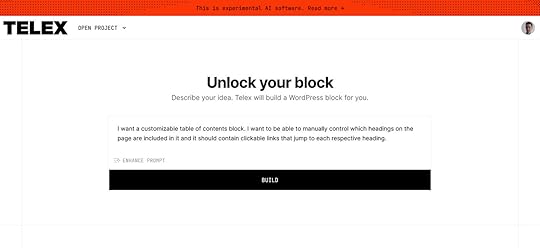
The tool will create a usable prototype for you to preview and test. From here, you can refine it with follow-up prompts or by editing the code directly.
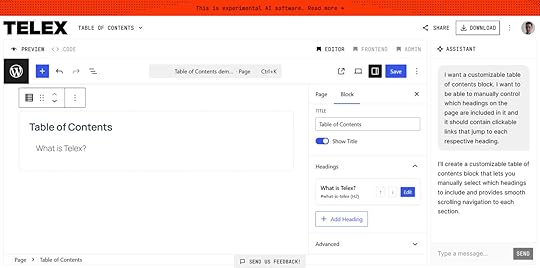
When you are satisfied, download the block as a plugin and install it on your site. You can also share it via a link.
How can Telex best help you speed up your development process?
Use it to:
Build quick prototypes or small utility blocks for client projects.Create block scaffolding in a real WordPress context to experiment with and refine.Learn from working examples and the code behind them.Note that Telex is still an experimental AI as the team continues building and improving it. You may run into occasional limitations, but more functionality is on the way. Their team is actively working to enhance the experience and welcomes your feedback and suggestions as you try it.
More information is available in the Telex FAQs, and you can help improve the tool by using the “Send us feedback!” button at the bottom of your project screen.
PicingTelex is free to use, and you can create unlimited blocks with it. If you don’t know what you should build, use these cool Telex block examples to get started.
8. WordPress.com AI website builderThe WordPress.com AI website builder allows you to use conversational prompts to create entire websites, and you can use it for free for new sites.
To start your free trial, head to the AI website builder page and use the prompt box to describe your website in a few words.
You can get more specific with your prompts once your site has been created.
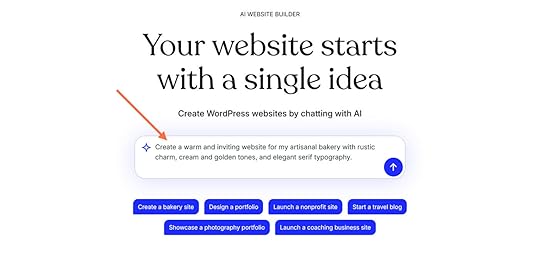
Once you submit, log in to your WordPress.com account, and answer a few more questions about the kind of site you want to create, the builder will create your site.
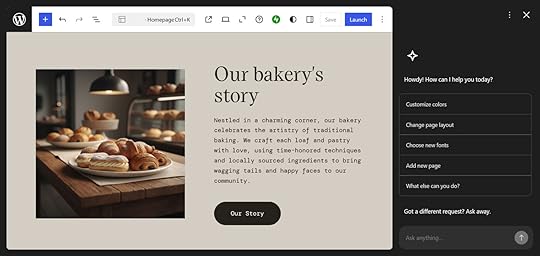
From here, you can customize your site using the AI chat in the sidebar. For example:
Customize colorsChange page layoutsChoose new fontsAdd new pagesUpload your own photosAnd so much more…Click on any element to customize it — use one of the suggested prompts that appear above the prompt box or type your own.
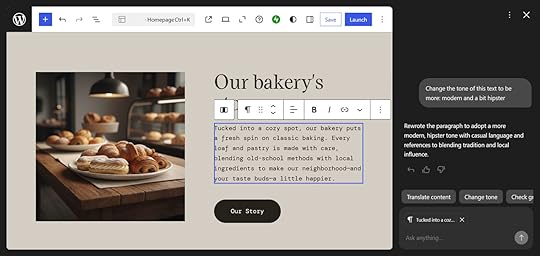
Change templates, colors, elements, generate new content — it’s up to you. If you don’t know what to do, you can also ask the AI builder what else it can help with.
Once you’re happy with your site, click the Launch button. Pick your hosting plan, and you are ready to publish your site.
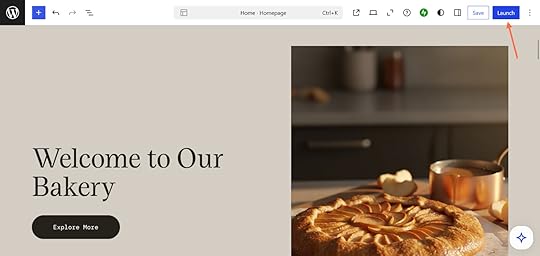
Since it’s all done in WordPress, you can always go back and customize your website further. Go to Appearance → Editor.
The AI sidebar will open automatically so you can easily continue using the AI chat to make changes across your site.
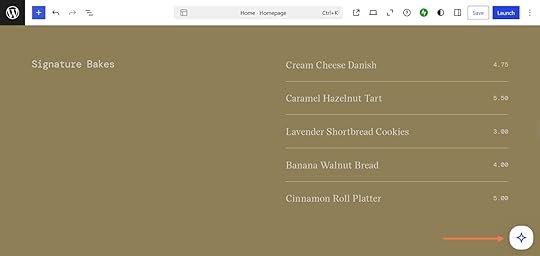
The WordPress.com AI website builder is ideal for anyone who wants to launch a website quickly, including developers who want to quickly scaffold ideas into functional prototypes or fully deployable sites.
It allows you to do so in a few hours instead of days or weeks.
Note that it can’t (yet) build ecommerce sites that need complex logic and features, but we’re constantly improving it. For more information, check the launch post and documentation.
PricingThe AI Website Builder from WordPress.com offers a free trial and is available on all WordPress.com paid plans.
Use AI tools to level up your web development workflowWeb developers can benefit greatly from AI tools — if you find the right ones.
There’s plenty to choose from, each suited for different jobs, applications, and environments.
They can do anything from generating code snippets and offering context-aware suggestions to answering questions and even building and managing entire WordPress sites via conversational prompts.
The list above is a solid starting point to explore the world of AI web development tools. The key is selecting the right combination that aligns with your specific needs, preferred workflows, and budget.
Sign up for WordPress.com and try out Studio Assistant and the AI Website Builder. Take advantage of powerful developer features like staging sites, SSH access, WP-CLI, and GitHub deployments while you are at it.