Jacob Parr's Blog
February 2, 2023
Upcoming Goodreads Giveaway!
I'm excited to get my thriller, Crimson Waters into the hands of other eager readers, and what better way than a FREE giveaway?
Enter for your chance to win February 5-28 at Goodreads!
[image error][image error]

January 6, 2023
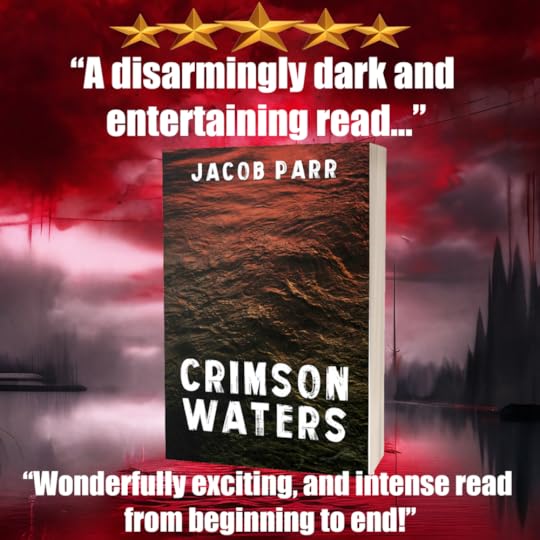
Crimson Waters
I was super excited to share with all my readers my latest thriller, Crimson Waters in December. If you haven't purchased a copy yet you can find the ebook and print versions here...
https://www.amazon.com/Crimson-Waters-Jacob-Parr-ebook/dp/B0BJ99PVJW
Already read it? Don't forget to leave a review for others.
August 28, 2022
Interview with author Louis Louis
To edit the way your blog feed looks on your site, hover over your blog feed and click on Design. Here, you can pick from different layouts. If you add a blog feed section to a different page on your website, you can pick a design that’s different from your main blog page.
Edit what info and details your blog feed displays by clicking on Settings (look for the 3 dot icon).
From the Settings panel, Wix Blog lets you hide or display the author name and picture, date and reading time, views, comments and likes counter. Toggle between the options and view your changes in real time.
If your blog is connected to a Members Area, you’ll want to make sure the Login button is visible to users. To send automatic email notifications to blog subscribers every time there’s a new post, turn on the email notification option on your Settings panel. Start managing your blog posts by clicking on Manage Posts once you’re happy with your blog settings.

10 books for the perpetually curious
To create and manage your own content, open the Blog Manager by hovering over your blog feed and clicking Manage. Here you can create, edit and delete posts and manage categories. You can also update your post settings and SEO, duplicate or draft posts, turn off commenting, or delete a post altogether by clicking Edit on each blog post.
To delete or edit an existing image or video in each post, click on the media to reveal a toolbar, which also allows you to customize the size and layout of your visuals.
Add more elements to your post by clicking on each of the symbols at the bottom of your post. Insert an image or gallery, embed HTML, or add a GIF to spice up your content.
Add a cover photo to your post before publishing by clicking Settings on the left sidebar. Your cover photo is visible to all users who browse the blog on your site. Edit how your posts show up on search results and make them more discoverable by editing the SEO for each post.
Add categories to your posts so users can navigate your blog pages by topic. Once you’re satisfied with your post, go live by clicking Publish.