
Shelly Sanchez Terrell's Blog
December 1, 2024
Make a Difference with Your Device! 10+ Websites and Apps to Inspire Students to Give
“Every child deserves a champion – an adult who will never give up on them, who understands the power of connection and insists that they become the best that they can possibly be.” – Rita Pierson
Around this time of year, I like to help students get into the giving spirit. One way is to introduce websites and apps that help others  I will be sharing these digital platforms along with teaching ideas regularly this month with the hashtag #DigiGift on social media (Facebook (ShellyTerrell), BlueSky (ShellTerrell), LinkedIn (ShellyTerrell), and X (ShellTerrell)). You can also just check this post regularly because I will be collecting posts on my Wakelet. Scroll down to access. Below are some of the websites and apps I will be sharing.
Enjoy the post, buy me a coffee! Get your copy of Digital Learning Missions or The 30 Goals Challenge or take a fully accredited online course for graduate credit (Online Learning Best Practices, Connected Educators or TESOL Methodologies)!
Digital Platforms that Make a DifferenceThe following are the platforms I recommend with ideas on how to use them with students. I’ve used these websites in the past with my students.
Click for Paws– Read a short blurb about an animal in need then click for that animal to receive a donation. You could do this during a morning routine (a pet you save for the day). Choose a student to read the short blurb or you could read to them then all could say, “Click!” together as the chosen student clicks to give. Rotate who gets to click each day.
Freerice is a trivia game. Every question students answer correctly raises 10 grains of rice for the World Food Programme (WFP). Categories in different subjects, such as English, Math, History, Art and others.
St. Jude’s E-Greeting for Hospitalized Children – Send a free card to hospitalized children with cancer at St. Jude’s Hospital for free. The website is also in Spanish and provides suggested messages and examples to help students.
Be My Eyes connects blind and low-vision users who want sighted assistance with volunteers through live video. My elementary students loved this experience. We only got called on twice but this was enough. I downloaded the app on my phone and I handled the call. It’s important to set and model expectations. I introduced the app ahead of time with a few short videos so they knew what to expect then we pretended we received a call and shared what was the appropriate voice level and why it was important to be respectful and be well behaved. I also let the person we helped know my students were there so they could decide to stay on the call. We helped locate socks then reviewed how we might have given better help.
With SciStarter and Zooniverse your students can choose from several research projects and become citizen scientists. Search for free and find a project aligned to your objectives or goals and age appropriate by using their search engines. Students read the simple instructions, which might include playing a game, clicking images, taking photos of nature, and so forth to help advance real research, science, and knowledge.
Trivia WebsitesThe following websites are good for a trivia question of the day. Answer the question and give to a cause. This could be part of a Trivia Tuesday or Thursday or any designated day in which the class answers the question to support a cause. Poll students to see which answer the class agrees on or you could get them to do a quick search so they discover the answer and share what other 3 facts they discovered with their table or a partner. Another idea is to post a graph, chart or spreadsheet where students track what the class has been given over time.
Trivia to Give is a website where you answer a trivia question to help a cause. Click on one of the colored tabs above the question to choose if you want to help people, planet, or pets. The trivia question is also related to the cause. If you don’t like the trivia question then click another a tab to see if that question is better.
The Animal Rescue website will give to animals when you click but doesn’t share a story. If you scroll down the page you will see a trivia question to answer. Playing supports Animal Victims of Natural Disasters.
Free Wheat– solve a simple math problem (mostly multiplication) and the website donates wheat to children in poverty. You can see the amount of wheat grown with each math problem solved.
Bean Bean Bean – answer quiz questions to collect digital beans and the host converts this to a dollar figure donated to charity of their choice. You can read about the different charities donated to on the website. Choose between categories like math, knowledge, language, geography and science.
Free Kibble has a trivia question related to their products on the website. Students can guess the answer using context clues. Each answer allows you to donate kibble to dogs or litter to cats.
Other Digital PlatformsEcosia is a free search engine. When you or your students browse or conduct searches with Ecosia then the company plants trees, protects endangered animals, or uplifts communities around the world. The company also generates solar energy for every day that you use the browser.


November 27, 2024
Play SPENT and Learn About Homelessness! A Lesson Plan for Teens and College Students
To help students get into the giving spirit, I find it important to help them empathize and deeply get to know a real-world problem such as poverty, homelessness, hunger and abandoned animals. SPENT is a free online game in which players are faced with choices that help them better understand homelessness and poverty. Below is a screenshot and lesson plan to go along with the game. This lesson plan combines interactive gameplay with vocabulary building and reflective discussion, helping students critically engage with the realities of poverty. Feel free to adapt as needed. This lesson could also be what my STEAM team calls the Entry Event to a project based on helping those in the community with hunger, poverty or homelessness. Tie this to a food, clothing or toy drive.
Enjoy the post, buy me a coffee! Get your copy of Digital Learning Missions or The 30 Goals Challenge or take a fully accredited online course for graduate credit (Online Learning Best Practices, Connected Educators or TESOL Methodologies)!
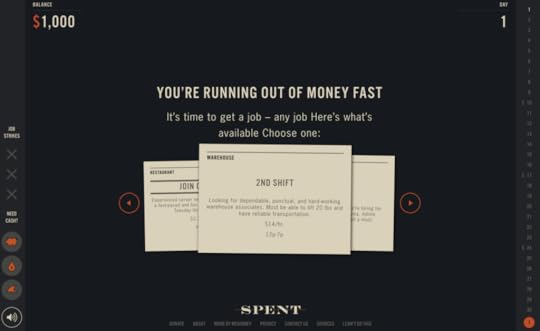 Lesson Plan: Exploring Poverty and Homelessness Through “Spent”
Requirements: Device with access to the game SPENT (you may need to check with a tech specialists if blocked)
Grade Level: Middle School, High School or College
Subject: ELA, Social Students or Similar
Duration: 1 to 2 class periods or more depending on the assessment and if you want them to spend most of the class period playing the game.
Objectives
Understand the financial and emotional challenges of poverty and homelessness. Acquire vocabulary related to poverty, finances, and decision-making. Foster empathy and critical thinking about socioeconomic issues.Lesson Plan
Introduction (10 minutes)
Discussion Starter:Ask students: “What do you think it means to live paycheck to paycheck?”Briefly discuss common challenges faced by individuals in poverty (e.g., limited resources, tough decisions).Optional- Introduce with a video or image displaying poverty (What do you notice about the image, what do you wonder?) Objective Overview:Explain the goal of the lesson: to experience and analyze the difficulties of living in poverty through the game Spent.Vocabulary Review (10 minutes)
Introduce key terms and concepts from the game.
Vocabulary Words:
BudgetMinimum wageRentExpensesSavingsDebtInsuranceEmergency fundTrade-offScarcityActivity:
Students work in pairs to match terms with definitions or use them in sample sentences.Briefly review the answers as a class.Gameplay
(20 minutes or the rest of the class period if you are extending the lesson)
Model playing the game Spent.Direct students to play Spent individually or in pairs.Instruct them to take notes on:Decisions they make during the game.How their choices impact their budget and well-being.Vocabulary words they encounter in context.Reflection and Discussion (15 minutes)
Small Group Discussion:What decisions were the most difficult to make?What did you learn about budgeting and trade-offs?Did the game change your perspective on poverty? How?Whole-Class Reflection:Share insights and discuss systemic factors that contribute to poverty.Explore solutions or support systems that might help those in poverty.Individual Reflection (15 minutes)
Write a reflective journal entry answering:What was the hardest decision you made in the game and why?What do you think society could do to help individuals facing these challenges?Assessment
Reflect on your understanding of poverty through one of the following: a 3–5 paragraph essay, create a presentation, create an infographic, create a psa (public service announcement) video, or create a podcast analyzing how playing the game Spent impacted your understanding of poverty. In your response, address the following questions:
What specific choices or moments in the game were most impactful for you? Why?How did the game change or deepen your perspective on the challenges people in poverty face?What lessons can you take from this experience to apply to your own life, community, or understanding of societal issues?Use examples from the game to support your ideas, and include any connections to your personal experiences, current events, or class discussions.Rubric
(with help from ChatGPT)
CriteriaAdvanced (4)Proficient (3)Developing (2)Needs Improvement (1)Content & IdeasEssay presents a thorough and insightful analysis of the game, with clear connections to personal experiences, societal issues, or class discussions.Essay provides a thoughtful analysis, with some examples and connections to personal or societal issues.Essay demonstrates a basic understanding of the game but lacks depth or clear connections to broader ideas.Essay lacks focus or understanding of the game’s lessons; minimal or no examples provided.OrganizationEssay is well-organized with a clear introduction, body paragraphs, and conclusion; transitions enhance readability.Essay is organized with clear paragraphs, but transitions may be weak or inconsistent.Essay is somewhat organized but lacks a clear flow of ideas.Essay is disorganized or lacks structure, making it difficult to follow.Use of EvidenceProvides multiple, specific examples from Spent to support analysis; effectively integrates these into the essay.Includes some examples from Spent to support points, but analysis may be less detailed.Mentions examples from Spent but does not elaborate or fully connect them to analysis.Few or no examples from Spent are provided, or examples are irrelevant.Clarity & LanguageWriting is clear, engaging, and free from grammar or spelling errors; vocabulary is appropriate and varied.Writing is clear, with minor errors in grammar or spelling; vocabulary is adequate.Writing is somewhat clear but contains frequent errors or overly simple language.Writing is unclear or contains many grammar and spelling errors that hinder understanding.Critical ThinkingDemonstrates deep reflection and original insights about the challenges of poverty and societal implications.Shows thoughtful reflection but may lack originality or depth in some areas.Demonstrates limited reflection or critical thinking; insights may be superficial.Shows little or no reflection; lacks critical thinking or relevant insights.September 19, 2023
AI Tools to Fuel Student Imagination
“I think imagination is at the heart of everything we do. Scientific discoveries couldn’t have happened without imagination. Art, music, and literature couldn’t exist without imagination. And so anything that strengthens imagination … can help us for the rest of our lives.” Lloyd Alexander, Award-winning Author
You’ve probably heard “generative AI” a lot these days and might be curious why it’s created such a buzz among some educators. You might also wonder why some educators are encouraging you to get students using generative AI tools. Generative AI is computer technology that creates products like articles, images, presentations, and even videos based on a person’s instructions. No programming or coding is needed. For example, you could use the most popular free generative AI tool, ChatGPT, and write out instructions like create a lesson plan to teach 4th graders about the water cycle and in minutes a fully developed lesson plan about the water cycle is produced or write a rap about the water cycle and within minutes one is produced. The written instructions are called prompts or even “prompt engineering.” The better you or your students get at prompt engineering, the better the AI tool is at producing something more valuable or more like what you imagined.
Why Get Students to Use AI Tools?Most recently I’ve worked with middle school students and I’ve seen how much mobile devices, the pandemic, and cultural changes have impacted literacy. I’ve worked at different schools worldwide. Recently, I’ve worked in 4 different schools in South Texas. Adolescents and teens aren’t reading as much literature or interested in reading what isn’t on a mobile device. I’ve tried libraries of graphic novels, comics, audio books, animated books and digital books. They still prefer videos, reading status updates from peers, or reading and looking at stuff on their devices. The lack of reading has impacted their writing. It’s not the test scores so much I worry about. It’s that I continually meet many students who aren’t familiar with the writing process or find writing so difficult they give up completely. I’ve also taught community college courses and found that there are many new Freshmen who struggle to write at a 5th grade level. They struggle with the basics, even writing paragraphs. I believe AI is a great tool to help spark writing among children, adolescents, and teens. The tools below are engaging and suitable for Pre-K to 12th grade students. I’ve also included very helpful planning and time-saving AI tools for teachers. Please make sure to check out recommended AI guidelines by UNESCO, ChatGPT, and ISTE, which recommend that students 13 years-old and above can begin using AI tools with parent consent.
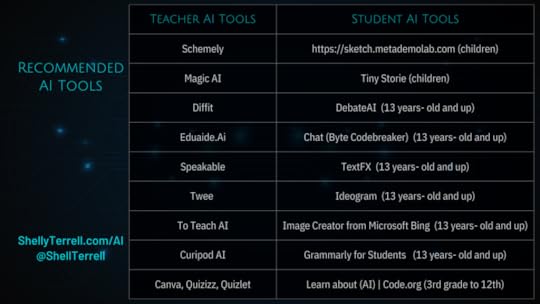
AI Tools
AI tools for teachers –
AI tools for students-
https://sketch.metademolab.com (children)Tiny Storie (children)DebateAI (13 years- old and up)Chat (Byte Codebreaker) (13 years- old and up)TextFX (13 years- old and up)Ideogram (13 years- old and up)Image Creator from Microsoft Bing (13 years- old and up)Grammarly for Students (13 years- old and up)Learn about Artificial Intelligence (AI) | Code.org (3rd grade to 12th)May 21, 2023
Inspire Families to Read and Learn This Summer
As the school year comes to a close and summer approaches, we need to encourage families to read and learn with their children at home. If our students are actively reading and learning at home, then they increase their knowledge, do better in school, and grow empathy and appreciation for lives lived much differently than their own. In order to help you encourage families to read at home, I am sharing with you reading challenges, reading adventures, and ways for families to receive free books. I also share recommended reading lists for elementary to high school students.
Free Family Newsletter TemplateSend families a summer newsletter filled with information, resources, and tips. Families want their children to succeed but they don’t always know how to go about this. Copy and edit the Family Newsletter template I’ve created for you to easily and quickly share with families. I’ve included some of the resources I’ve shared in the Wakelet and slide presentation below. The links to the resources are in the notes section of the slide. Just click this link for the English version and this link for the Spanish version. You may want to check my Spanish translations. Choose Use Template then edit as you need. You can then go to the File tab, choose Download and PDF. Post the PDF in your messaging app (Class Dojo, Remind), in a virtual classroom (Google Classroom, Schoology), or email to parents.
My newsletter starts families off but you can also include recommended reading lists. Find reading lists by grade level on the What We Do All Day website and the We Are Teachers website. You may also want to provide a list of recommended learning platforms and any class codes. This may include include Prodigy, Get Epic, or Code.org. Find a list of free education websites here. Share local learning events around the city. Find these events listed by the local library, the community events calendar, Facebook local events, the children’s events website, the tourist website, the local newspaper or the parks and recreation websites. Also, share websites and places to receive free books, such as a map of free mini libraries around the area, Amazon’s free Kindle books, ReadWorks, or Youthpedia. Provide information on how to get a library card and access the digital materials.
Discover more ways to integrate technology effectively by attending a live webinar or workshop!Subscribe for FREE to receive regular updates!
Get your copy of Hacking Digital Learning or The 30 Goals Challenge or take a fully accredited online course for graduate credit (Online Learning Best Practices, Connected Educators or TESOL Methodologies)!
Bookmarked Resources
The post Inspire Families to Read and Learn This Summer appeared first on Teacher Reboot Camp.
December 23, 2020
Find the Right Tool to Inspire Your Learners
The good news is there are thousands of digital tools and apps (many free) to support teachers, students and families. The bad news is there are thousands of digital tools. Teachers need to quickly find the right tool to meet their students’ needs and means. The websites below have search engines to narrow down the choices along with short descriptions and reviews. This way you search for a tool that works on all student devices, is easy to use for the age group you teach, within your budget even if this means free, and accomplishes the goal (formative assessment, storybook creators, comic book creators, math tools, books online, etc.).

Virtual Student Jobs, Roles, and Duties
Students love being trusted with responsibility. They want to help. When students help you allow their peers to celebrate them and learn from them. During remote and distance learning student helpers can really help you manage a lot more. Below are ways to allow students to help you. I’ve used these tips and resources this year and student helpers have really helped make hybrid and virtual learning run more smoothly.
December 21, 2020
Tons of Engaging Lesson Templates for Incredible Student Learning
If you are a teacher who uses Google Classroom then you know how easy it is to assign a template of a Slide, Spreadsheet, Doc or Drawing for students to complete. Even if you don’t use Google Classroom. You can easily force a copy to students with a simple link. Creating these templates doesn’t have to take hours. There are tons of Google Guru educators who freely share their lesson templates for teachers to copy and edit. Using templates saves you and your students a lot of time and stress! All you need to do is copy the template you want your students to use, edit and tweak the template as you like, then share the template url with your students so they copy it and complete the work. Below is a list of websites with tons of free templates, tips, and tricks! In my presentation, Teach with Google! Tips, Tricks and Templates Galore!, you will find more GSuite Edu tips.
December 20, 2020
Encouraging Students to Set Goals for the New Year
The first step in student ownership of their own learning is goal setting. We can help students identify what they know, how they want to grow and commit to plans to making this happen. One way I help my students set learning goals is by having them complete the vision board template below, which is free for you to copy and assign to students. I also tie this to the “One Word Project.” You can read more about student vision boards in my book, The 30 Goals Challenge for Educators: Small Steps to Transform Your Teaching.
December 19, 2020
I’ve Got an Idea? Digital Brainstorming Tools for Students!
My students love doing any learning when they get to brainstorm on their desks with a dry erase marker. Brainstorming on a canvas with words, symbols, icons, lines, stylized font, shapes, frames, and color is a fun way for the brain to make connections and make sense of information. The digital whiteboards and brainstorming tools below provide features for students to create sketchnotes and concept maps. Use these tools for brainstorming sessions, diagramming, concept mapping or to get students to fill out different types of graphic organizers and flow charts.
?Discover more ways to integrate technology effectively by taking one of my fully accredited online courses or get one of my books!Concept Mapping ToolsBefore students play with the concept mapping tools listed, I have them first learn about concept maps. Students begin by watching the Brainpop video here and follow along, creating a concept map on paper. Find more concept mapping lesson ideas and resources from Brainpop here along with a rubric.
Bubbl.us is a free website for creating colorful concept maps, no registration required. This is one of my students’ favorite tools to create colorful concept maps with main ideas and sub ideas that are movable.
Milanote is a free website for creating colorful concept maps with images. It’s free to export PDFs or images of your mind maps. Check out how people are using Milanote here.
Lucid Chart is available on the web and on iOS and Android devices. Create collaborative and colorful diagrams and flowcharts. Access a library of shapes, containers, stylized fonts and more. Find templates for Venn diagrams, graphic organizers, and timelines.
Mind42 is a free online mind mapping software that runs in a browser. Students create structured diagrams to visually organize information with text and images.
Mindmeister is free mind mapping tool and available as an iOS and Android app, extension, add-on, and web app. Students create with nodes, text, and images.
Creatly provides various templates and types of graphic organizers for different kinds of projects. With the free version get access to 3 documents with up to 3 collaborators.
Popplet is a mind mapping app on the iPad to get students creating digital mind maps with links, videos, and images. Students can add their own drawings and pictures from the iPad. Only 1 reusable canvas is available with the free version.
Brainstorming CanvasesGoogle Jamboard is currently a favorite free digital canvas for students to brainstorm collaboratively. Teachers can create multiple whiteboard slides for students to post ideas, draw, add shapes, add images, and more! So many teachers have created templates with graphic organizers, games, brain teasers, and more.
Check out this incredible Jamboard Cheat Sheet by @Etownscience if you are new to this tool!Find several templates teachers created for you to copy and edit as you like in this Wakelet by Holly Clark, The Ultimate Collection of Jamboards. Also, check out this post, How to use Jamboard in the classroom: 20+ tips and ideas, by Matt Miller.Whiteboard.fi is a free online whiteboard tool where teachers can create a class and let students join, using a link, room code or QR code. Students are each given a digital whiteboard, where they can draw, write text, make notations on images, add math equations, and more! Teachers see all student whiteboards in real time.
LinoIt and Padlet are favorites among teachers and students. Teachers create a web wall where they can post questions, pdfs, files, audio, video, and images for students to quickly access on any device by clicking a url or scanning a QR code. Students post a response with different colored sticky notes. Students can share videos, pdfs, text, photos, emojis, and images. Padlet allows a limited amount of walls with the free version.
Twiddla is an online collaborative whiteboard tool with the ability to add images, shapes, stylized text and more. Two favorite features is the voice feature so students talk to each other in real time and no registration is required.
Groupboard is an advanced collaborative online whiteboard and web conferencing software. It works on any web browser including iPhone, iPad and Android with no downloads or plugins required. No registration required. Students can add text, shapes, draw, and more.
Subscribe for FREE to receive regular updates!
?Get your copy of Hacking Digital Learning or The 30 Goals Challenge or take a fully accredited online course for graduate credit (Online Learning Best Practices, Connected Educators or TESOL Methodologies)!
 Digital Advent Calendar
Just click on the day and find a post full of free STEM resources and ideas  If you enjoy these resources, then take one of my fully accredited continuing education and graduate online courses or check out my book, Hacking Digital Learning Strategies with EdTech Missions!
The post I’ve Got an Idea? Digital Brainstorming Tools for Students! appeared first on Teacher Reboot Camp.
I’ve Got an Idea💡 Digital Brainstorming Tools for Students!
My students love doing any learning when they get to brainstorm on their desks with a dry erase marker. Brainstorming on a canvas with words, symbols, icons, lines, stylized font, shapes, frames, and color is a fun way for the brain to make connections and make sense of information. The digital whiteboards and brainstorming tools below provide features for students to create sketchnotes and concept maps. Use these tools for brainstorming sessions, diagramming, concept mapping or to get students to fill out different types of graphic organizers and flow charts.
Discover more ways to integrate technology effectively by taking one of my fully accredited online courses or get one of my books!Concept Mapping ToolsBefore students play with the concept mapping tools listed, I have them first learn about concept maps. Students begin by watching the Brainpop video here and follow along, creating a concept map on paper. Find more concept mapping lesson ideas and resources from Brainpop here along with a rubric.
Bubbl.us is a free website for creating colorful concept maps, no registration required. This is one of my students’ favorite tools to create colorful concept maps with main ideas and sub ideas that are movable.
Milanote is a free website for creating colorful concept maps with images. It’s free to export PDFs or images of your mind maps. Check out how people are using Milanote here.
Lucid Chart is available on the web and on iOS and Android devices. Create collaborative and colorful diagrams and flowcharts. Access a library of shapes, containers, stylized fonts and more. Find templates for Venn diagrams, graphic organizers, and timelines.
Mind42 is a free online mind mapping software that runs in a browser. Students create structured diagrams to visually organize information with text and images.
Mindmeister is free mind mapping tool and available as an iOS and Android app, extension, add-on, and web app. Students create with nodes, text, and images.
Creatly provides various templates and types of graphic organizers for different kinds of projects. With the free version get access to 3 documents with up to 3 collaborators.
Popplet is a mind mapping app on the iPad to get students creating digital mind maps with links, videos, and images. Students can add their own drawings and pictures from the iPad. Only 1 reusable canvas is available with the free version.
Brainstorming CanvasesGoogle Jamboard is currently a favorite free digital canvas for students to brainstorm collaboratively. Teachers can create multiple whiteboard slides for students to post ideas, draw, add shapes, add images, and more! So many teachers have created templates with graphic organizers, games, brain teasers, and more.
Check out this incredible Jamboard Cheat Sheet by @Etownscience if you are new to this tool!Find several templates teachers created for you to copy and edit as you like in this Wakelet by Holly Clark, The Ultimate Collection of Jamboards. Also, check out this post, How to use Jamboard in the classroom: 20+ tips and ideas, by Matt Miller.Whiteboard.fi is a free online whiteboard tool where teachers can create a class and let students join, using a link, room code or QR code. Students are each given a digital whiteboard, where they can draw, write text, make notations on images, add math equations, and more! Teachers see all student whiteboards in real time.
LinoIt and Padlet are favorites among teachers and students. Teachers create a web wall where they can post questions, pdfs, files, audio, video, and images for students to quickly access on any device by clicking a url or scanning a QR code. Students post a response with different colored sticky notes. Students can share videos, pdfs, text, photos, emojis, and images. Padlet allows a limited amount of walls with the free version.
Twiddla is an online collaborative whiteboard tool with the ability to add images, shapes, stylized text and more. Two favorite features is the voice feature so students talk to each other in real time and no registration is required.
Groupboard is an advanced collaborative online whiteboard and web conferencing software. It works on any web browser including iPhone, iPad and Android with no downloads or plugins required. No registration required. Students can add text, shapes, draw, and more.
Subscribe for FREE to receive regular updates!
Get your copy of Hacking Digital Learning or The 30 Goals Challenge or take a fully accredited online course for graduate credit (Online Learning Best Practices, Connected Educators or TESOL Methodologies)!
Digital Advent CalendarJust click on the day and find a post full of free STEM resources and ideas If you enjoy these resources, then take one of my fully accredited continuing education and graduate online courses or check out my book, Hacking Digital Learning Strategies with EdTech Missions!
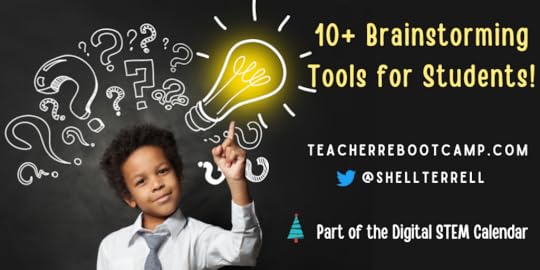
The post I’ve Got an Idea💡 Digital Brainstorming Tools for Students! appeared first on Teacher Reboot Camp.
Shelly Sanchez Terrell's Blog

- Shelly Sanchez Terrell's profile
- 1 follower

