
Parenting in the digital age, lessons learned – part 1

Internet Street – Is it like walking down Bourbon Street and all library aisles at the same time?
What could go wrong?
So being a bit of a data head/IT pro-ish guy here, I naively looked forward to the time when my children would become digital citizens and join the online community of the world. I figured “Hey, it’s the internet, nearly all the combined knowledge of humanity is there for them to learn and question and grow from. What could go wrong.”
Well, turns out, quite a bit. Try filtering inappropriate videos on YouTube from a 9 year old’s eyes while still making sure he can get access to everything he wants to access. But then only things that are appropriate for his age…Or try making sure extreme vulgarity doesn’t get shared with your 11 year old daughter on a Mine Craft server.
Now one can say “Hey this is a helicopter parenting problem, not a technical one” and you might be right. That is a legitimate argument. However, it doesn’t absolve my responsibility as a parent to try to provide a good, nurturing, but non-claustrophobic learning environment for my child either. So naturally I turned to the internet to find answers…
To find what I wanted though, I had to have a concise problem statement. If I didn’t, I’d never get a good answer to my problem. So what’s the problem?
The problem is, in essence, to control what information reaches the nodes on my network. So I need a web proxy filter agent. With reporting. And preventing malware from executing, and greyware/ransomware as well. And if something does happen, I need backups so I can restore school work. And auditing would be nice, reporting. And some help educating my users, er, children, to have better browser habits is in order too.
So I need something like say, BlueCoat + Applocker + AntiVirus + System Restore/Enterprise grade backup/restore. Did I mention I wanted it for free? Because #children, I guess.
So now that we’ve named the demon, so to speak, how do we get what we need here?
Note this article assumes you are running Windows 10 for your operating system. It is the first part of a series I am doing on parenting IT style.
The primary and perhaps most complex issue is safe browsing.
The ‘thing’ itself is ambiguous. What is good to some is not good to others as we all know. So how do we ‘lock it down’ to protect the children from the world at large? The short answer is, we don’t. We can try, don’t get me wrong. We can make an honest effort to filter some obnoxious and static content sure.
Microsoft Family Safety is a good starting point

Microsoft Family Safety is a good first step in the multi-layered defense we need to build for our user base. It actually solves a few of the issues we’ve named, but safe browsing, reporting, control of screen time, and what they can launch by ESRB is all handled to some extent. And unlike Windows 8, Family Safety is tightly integrated into Windows 10. Mixing this with a locked down non-administrative rights account and you have a pretty good starting point.
Notice one thing with Microsoft Family Safety though, the web filtering only works on Microsoft Edge or Internet Explorer. Users of Firefox or Google Chrome can circumvent some of the native controls here. So…queue the next line of defense!
OpenDNS is our next step at filtering web traffic
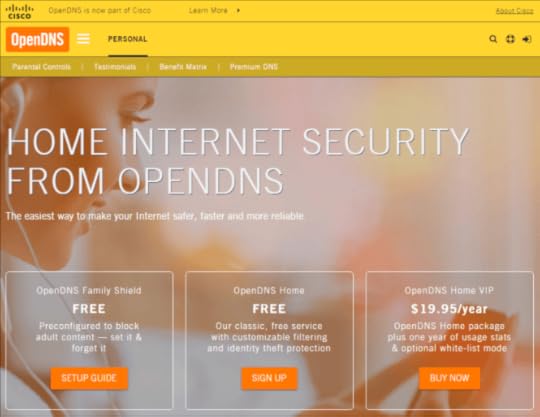
Instructions on how to configure your router and/or machine configuration to query all your name to address lookup queries with OpenDNS are pretty easy to follow. Once your system(s) are using OpenDNS services you’ve gone a long long way towards protecting/filtering content. The handy part here is it also helps protect our devices not running Windows 10. Lastly, it meets our pricing bar of ‘free’ for some pretty comprehensive functionality.
In addition to this. Some IOT devices (doorbells, baby monitors, smoke detectors, etc) are smart now. This poses a lot of security problems. It *may* make sense to block these from leaving your network via your firewall/router for the time being. It used to be as simple as configuring them with a static IP address and then not giving them a default gateway. Maybe that makes sense. Or just putting them on a different network. Something other than just fire and forget perhaps.
Mobile network filtering
For home browsing these solutions all work in tandem to protect the user from themselves. But what about when the user is on a tablet outside your zone of control?
A browser dedicated to security and filtering is probably needed. Mobicip and Dashlane both provide their own browsers (Dashlane is for password sync/storage/generation, Mobicip straight out filtering). Investigating a ‘right for you’ product in this space is really key. Every time the user is on a device outside your network and connected to the internet, issues can occur. So nip it in the bud with this strategy. Also once the devices have cellular service they are always on and browsing may not be using your network’s configuration at all.
The real solution
Not surprisingly, after having the snapchat talk with my 11yo this weekend, my wife and I discussed for some time over Skype and I came to the realization that the real fix is to train the user (my kids). If I cannot trust them to use the devices responsibly and have good ethics, make good choices, then take the device(s) away. The fix is to empower them down the path of being confident, understanding the technical/social aspects of their decisions and helping them. Not caging them in, which is the first reaction I had. I wanted to protect my kids from the web (and the world). But what I really want to protect them from, it seems, is the short and long term consequences of their own actions.
:/
Next post coming
The next post is going to cover some aspects of data recovery, OneDrive, why Office365 is a huge win for a family. I might even get into how I stood up a Minecraft server for the kids. And then had to make one for each because #siblingrivalry.
Till next time,
Jeff


